Pixel Bead guide
Pixel Bead Creator: Tools and Panels
Every control in Create from Scratch — editing tools, zoom, display toggles, reference images, and inventory limits.
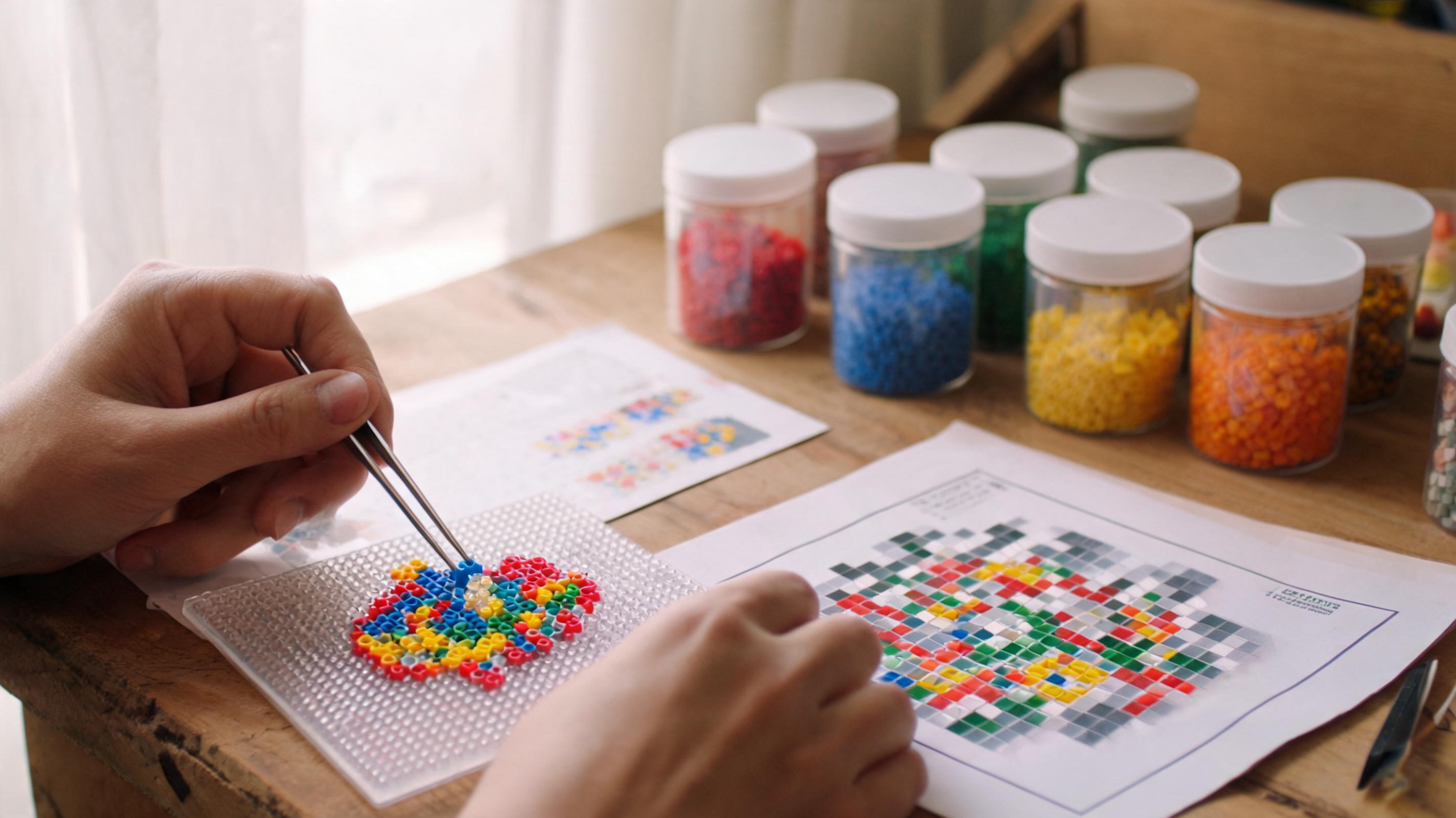
Paint, Erase, Fill, and Eyedropper
The toolbar above the canvas switches your pointer action. Only one tool is active at a time.
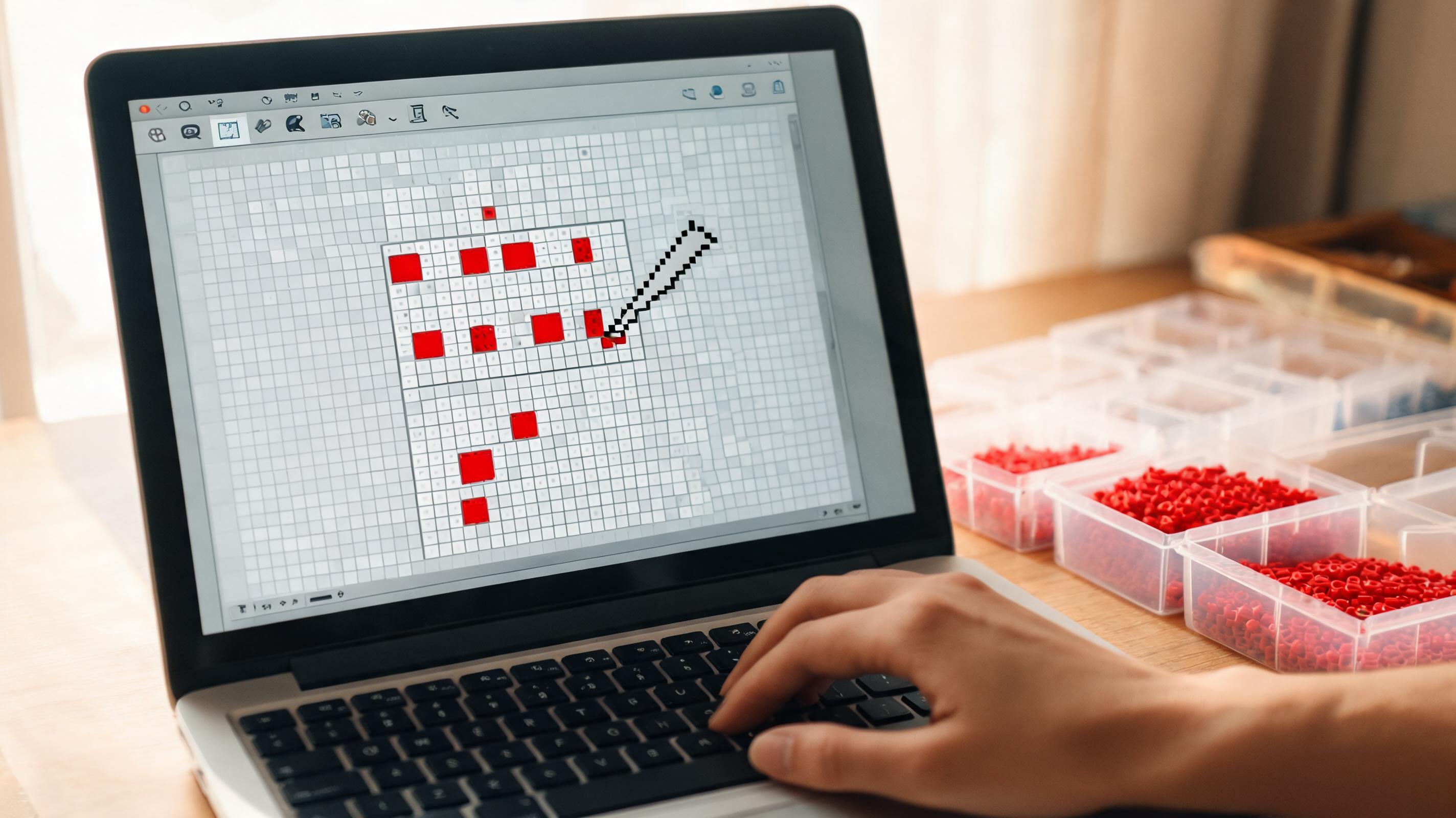
- Paint — click or drag to place the selected palette color.
- Erase — click or drag to clear cells back to empty pegs.
- Fill — click inside a closed region to flood it with the selected color.
- Eyedropper — click a filled cell to copy its color to your active swatch.
Undo, Redo, and Replace Color
Undo reverts the last edit; Redo restores it. Replace color is a two-step bulk edit: select the color you want to change, then select the replacement swatch, then click Replace color.
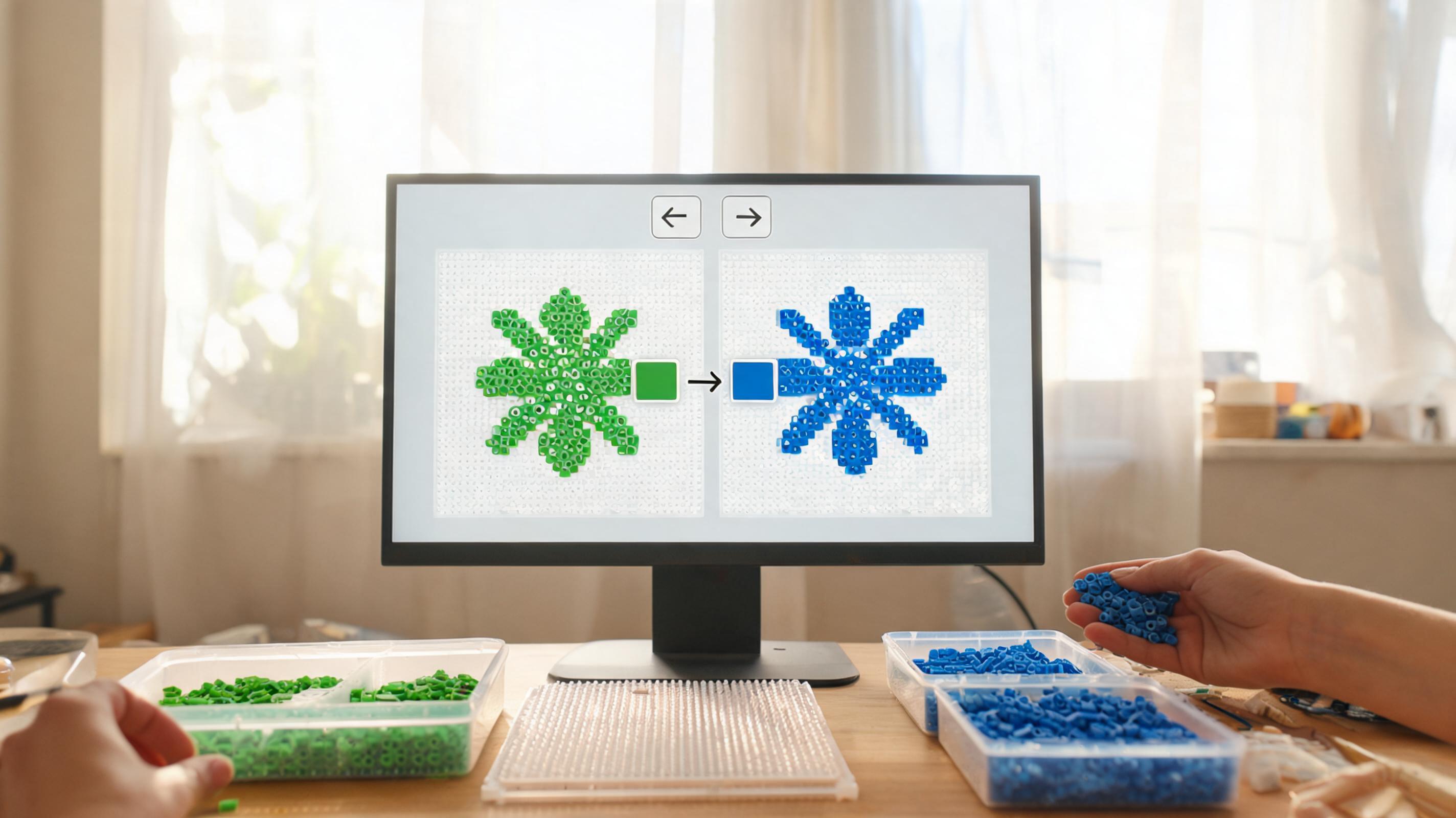
Grid, Bead Codes, and Coordinates
Three toggle buttons sit beside the toolbar. They change what you see on the canvas without changing the saved pattern.
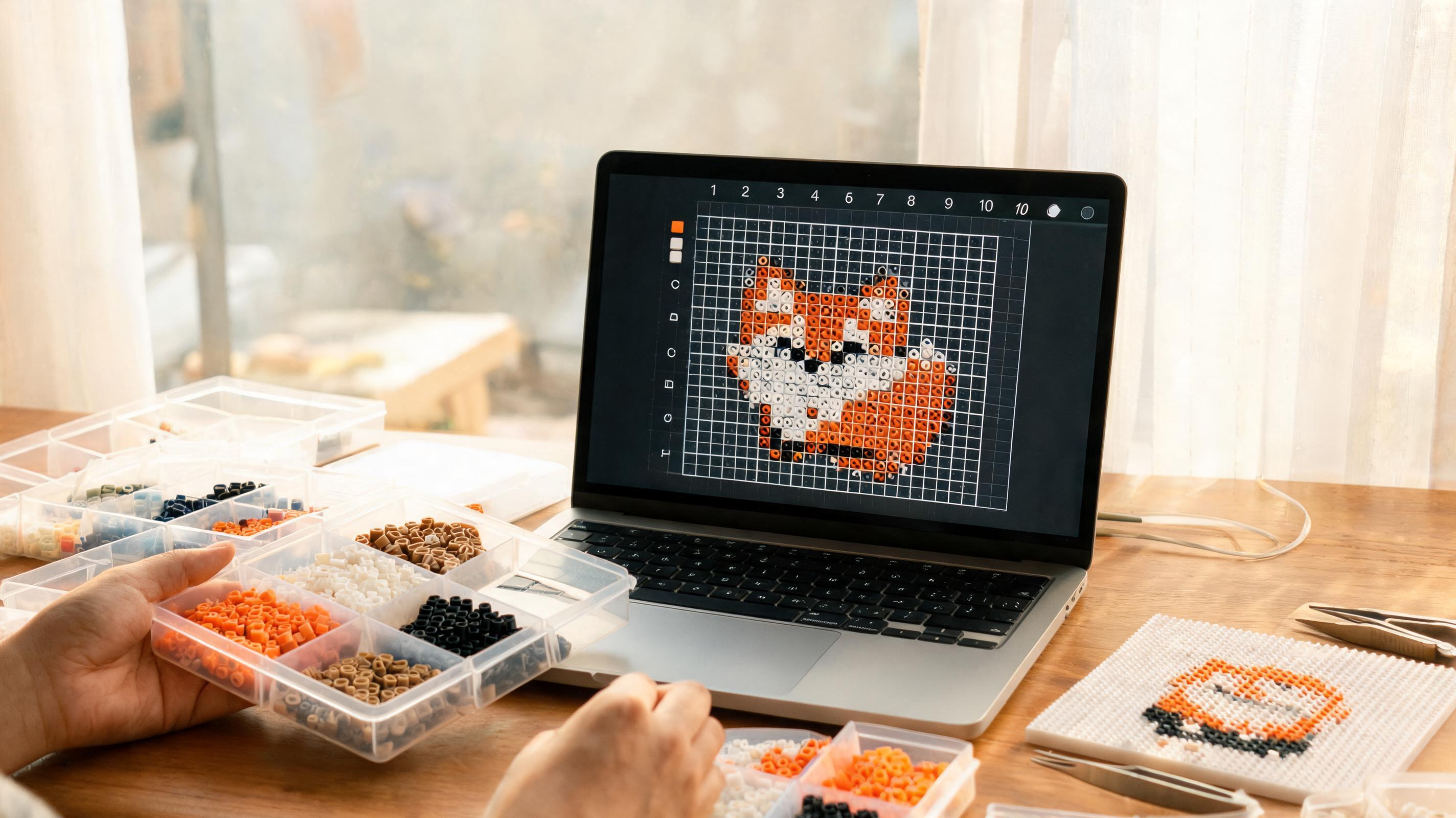
- Grid — peg board lines between cells.
- Bead codes — shows the palette ID (A1, B12, etc.) on each filled bead.
- Coordinates — row and column numbers for counting while you build offline.
Zoom, Fit, and Full Screen
Large patterns do not fit on screen at full peg size. Use − and + to step zoom by 25%, or Fit to auto-size the grid inside the viewport. Full screen expands the editor to your monitor for distraction-free work.
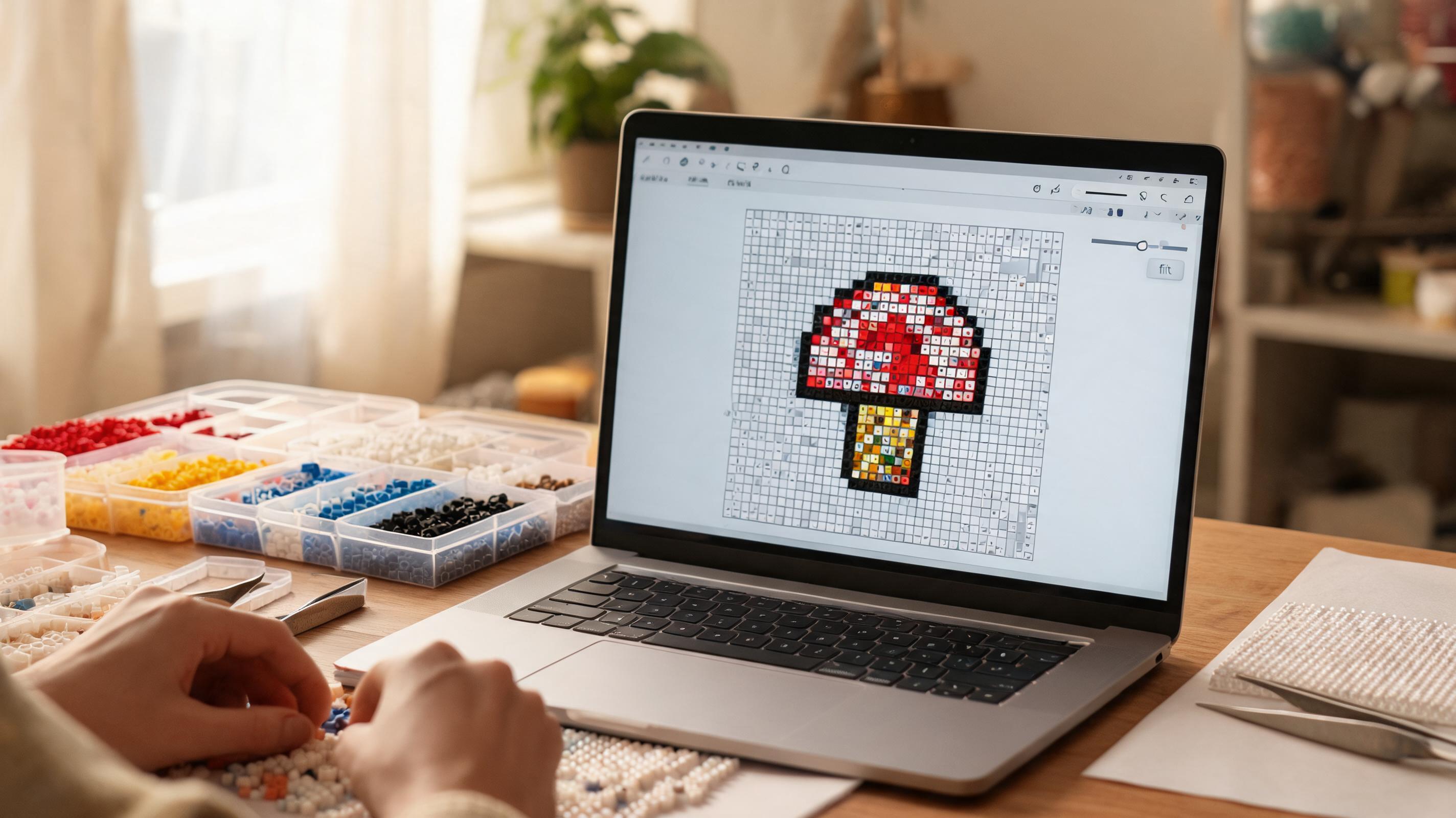
- Fit — keeps the whole grid visible; re-applies when the window resizes.
- Manual zoom — scroll the canvas to reach corners on big grids.
- Full screen — Esc or Exit full screen returns to normal layout.
Reference Image and Trace Overlay
The right Reference panel keeps your source photo visible while you edit. Upload PNG/JPG/WebP, replace it, choose from workspace saved projects, or remove it.
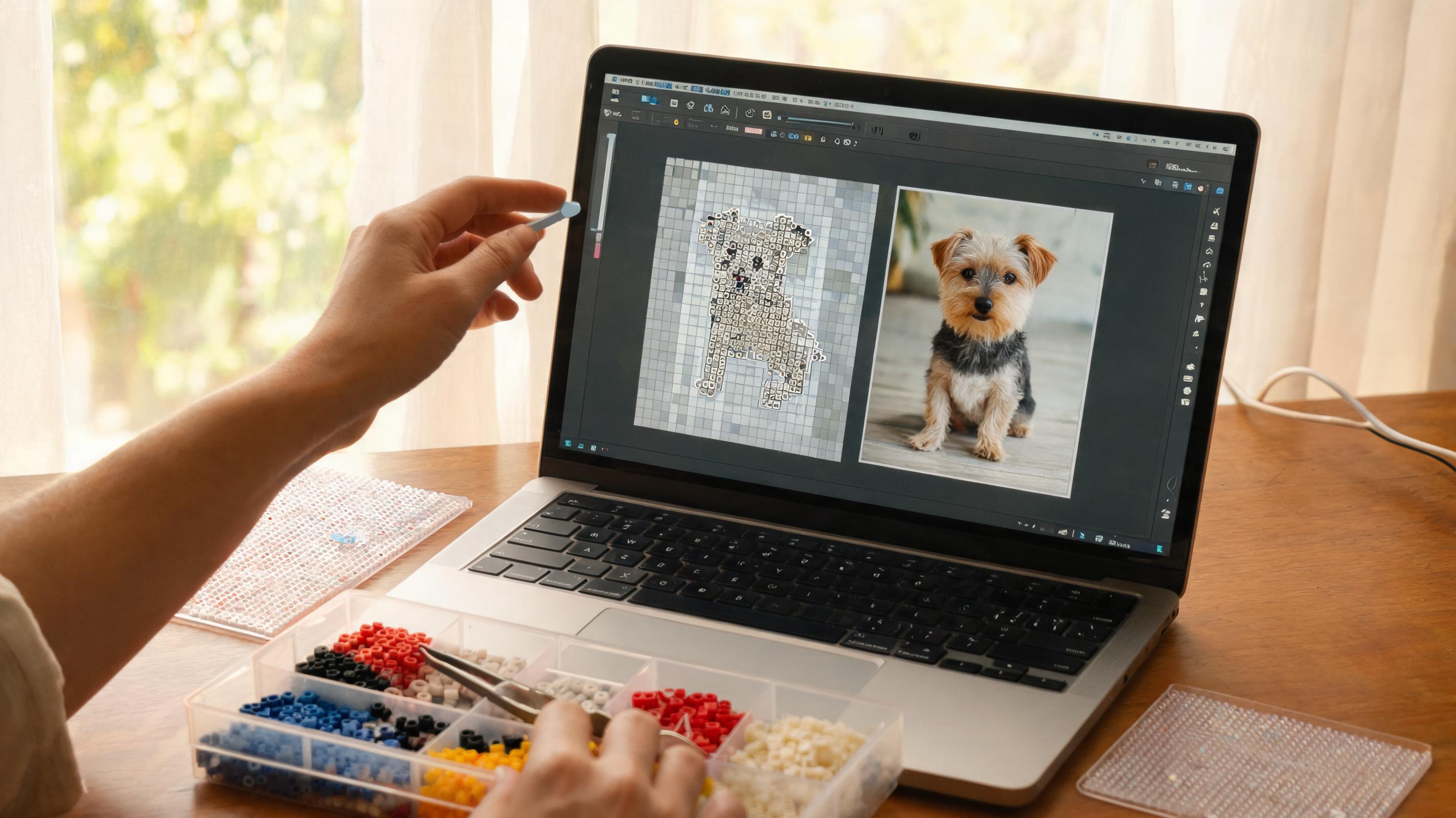
- Also trace over the canvas — draws the reference semi-transparently on top of the grid so you can follow contours.
- Overlay opacity — 0–100% for the on-canvas trace.
- Lock reference controls — prevents accidental uploads or opacity changes mid-build.
Inventory-Limited Palette
Enable Limit to my inventory colors in the Palette section to gray out swatches you have not marked as owned. The same inventory list is shared with the image converter's Only use colors I own option.
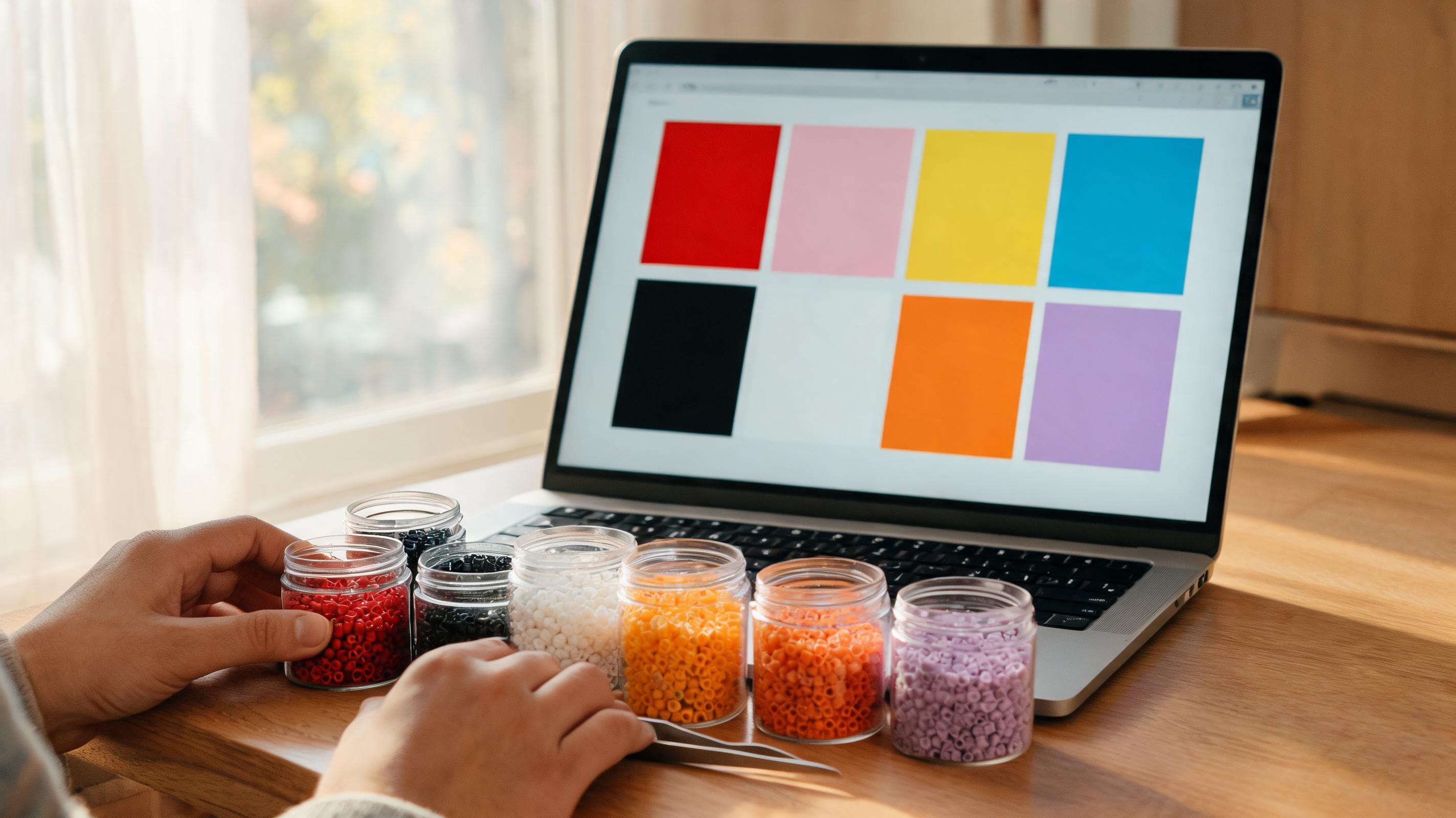
Manage your owned colors from the converter's My bead inventory dialog. Keeping inventory updated means every tool respects what is actually on your shelf.