Learn the system
Pixel Bead Guides
Step-by-step help from your first photo to a finished bead piece — including what every slider, button, and export option does in the studio tools.
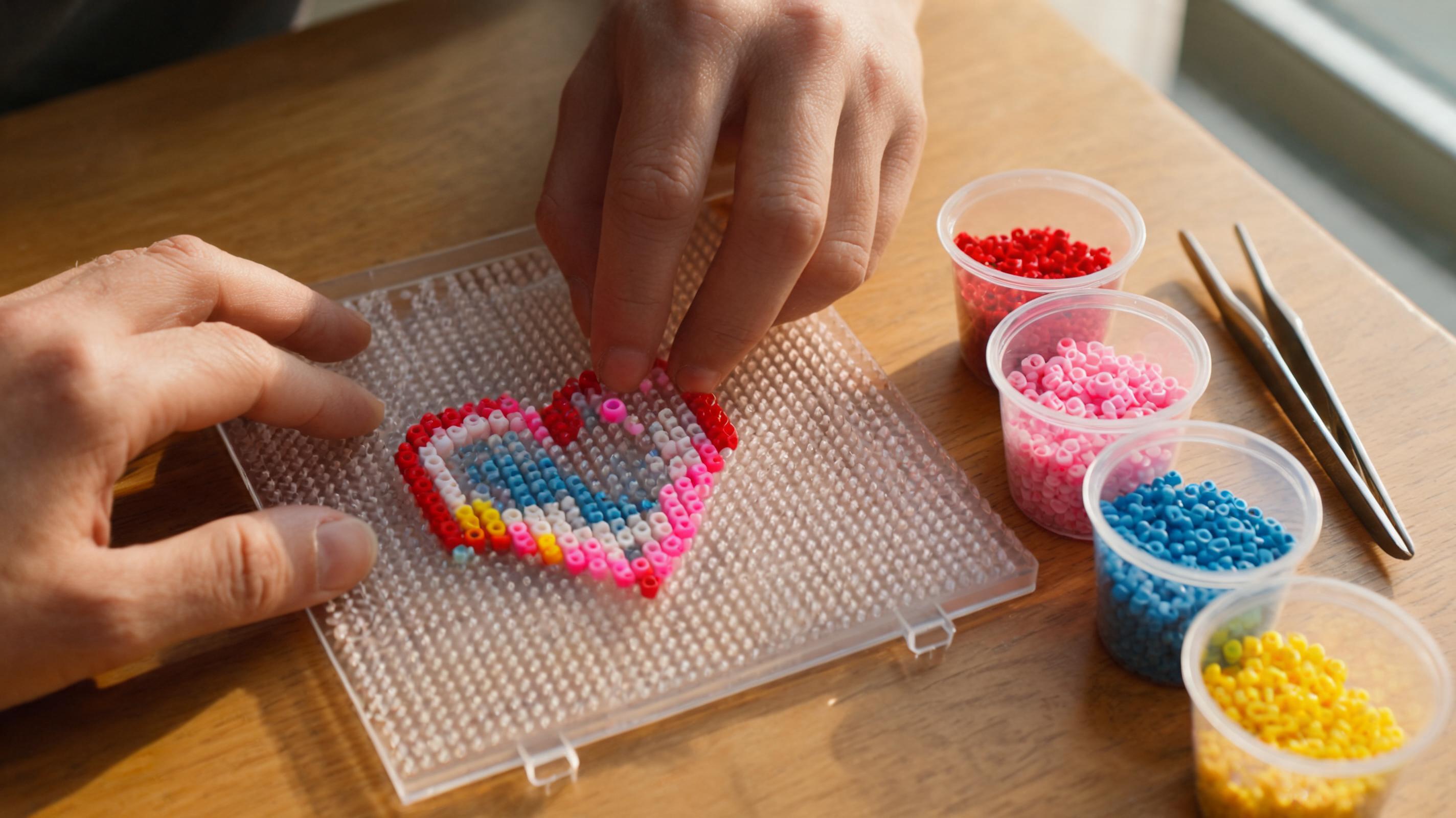
What Are Pixel Beads?
The materials, grid logic, and vocabulary behind fuse-bead craft — and how Pixel Bead studio maps them to digital tools.
Read guide →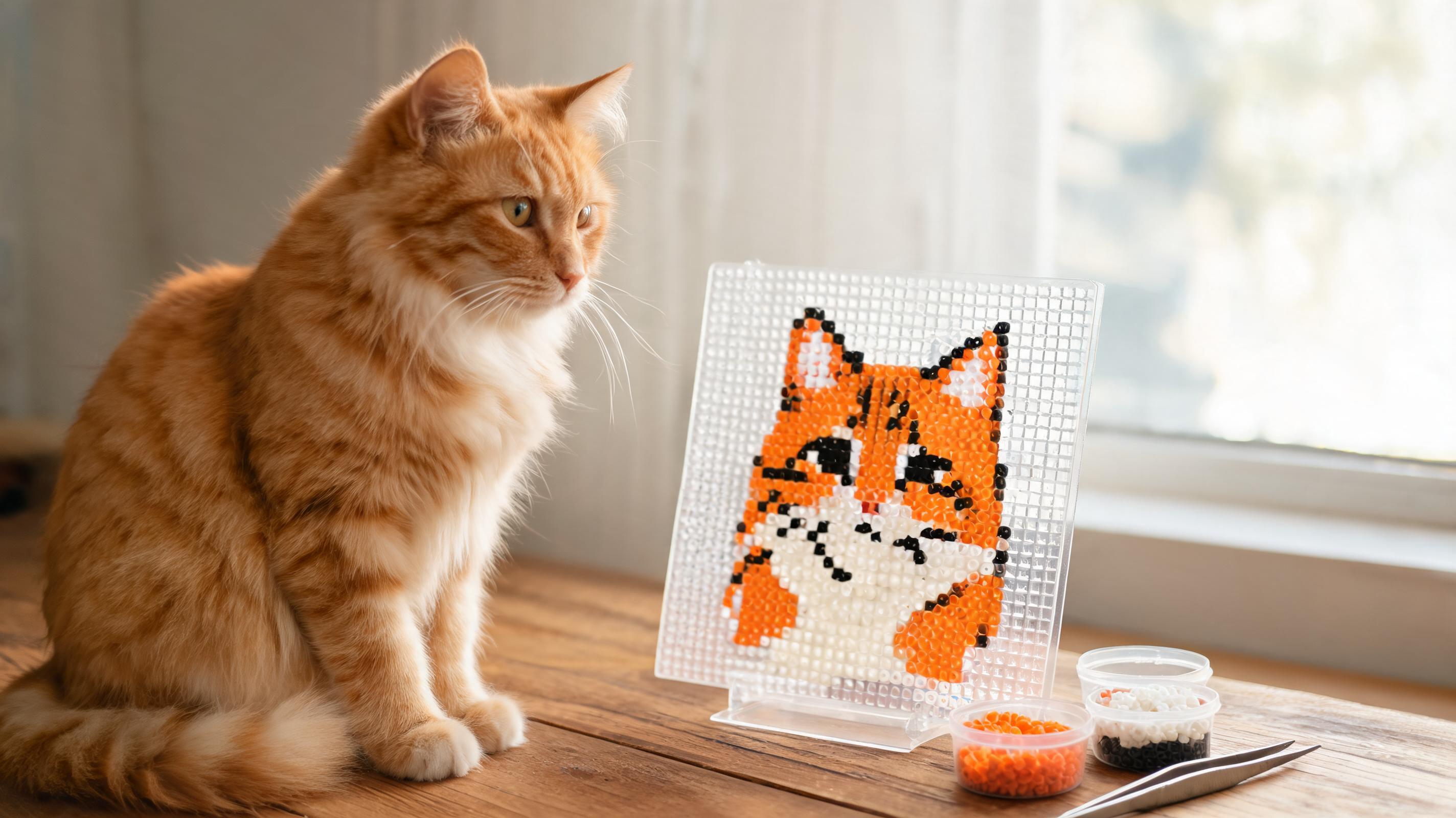
Image to Pixel Bead Pattern
Turn a photo into a bead-ready grid — from picking a source image to reviewing your material list.
Read guide →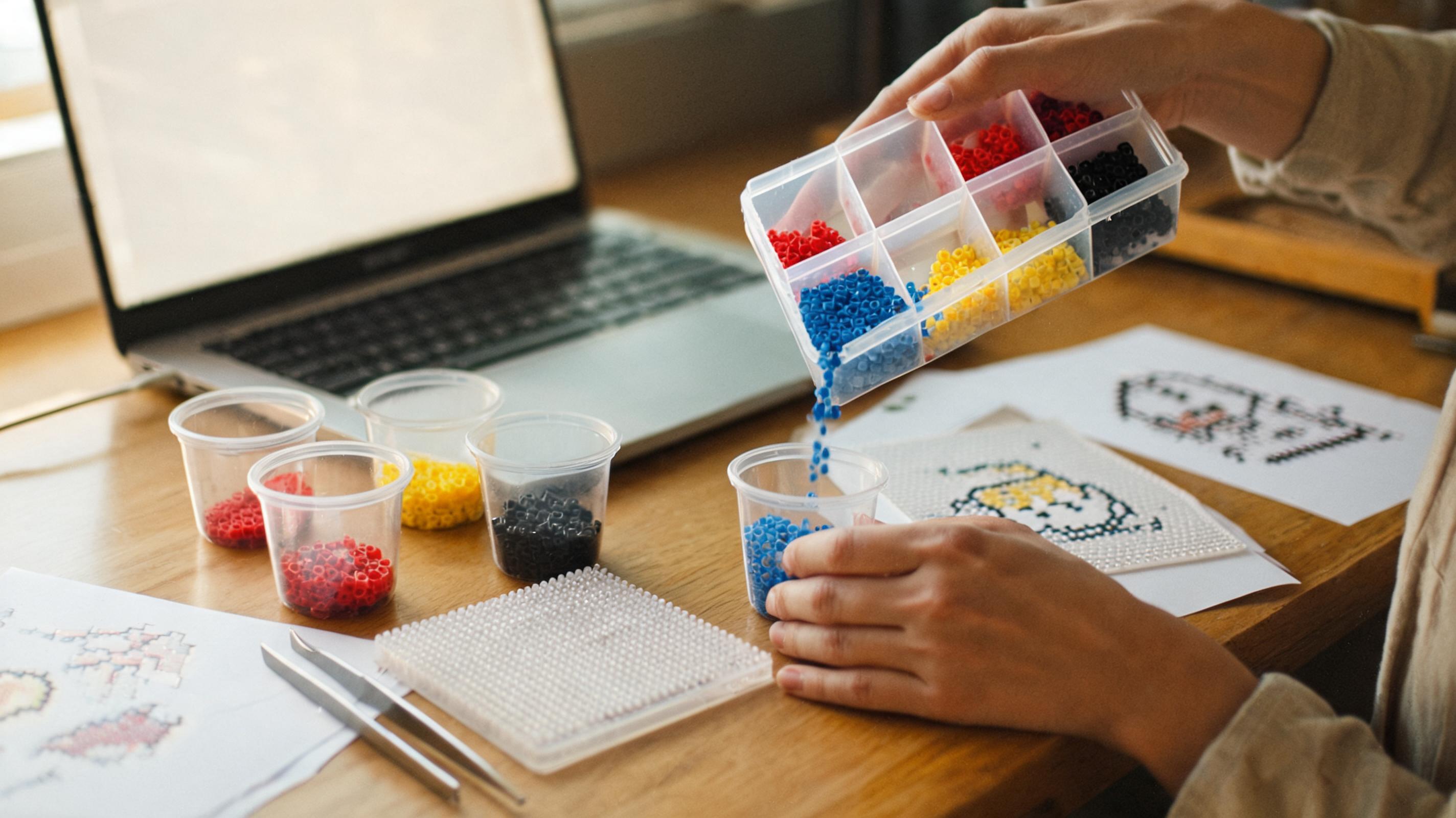
How to Use the Image to Pixel Bead Converter
A complete walkthrough of the Image to Pixel Bead tool — every button, slider, and setting on the left panel, preview, and download column.
Read guide →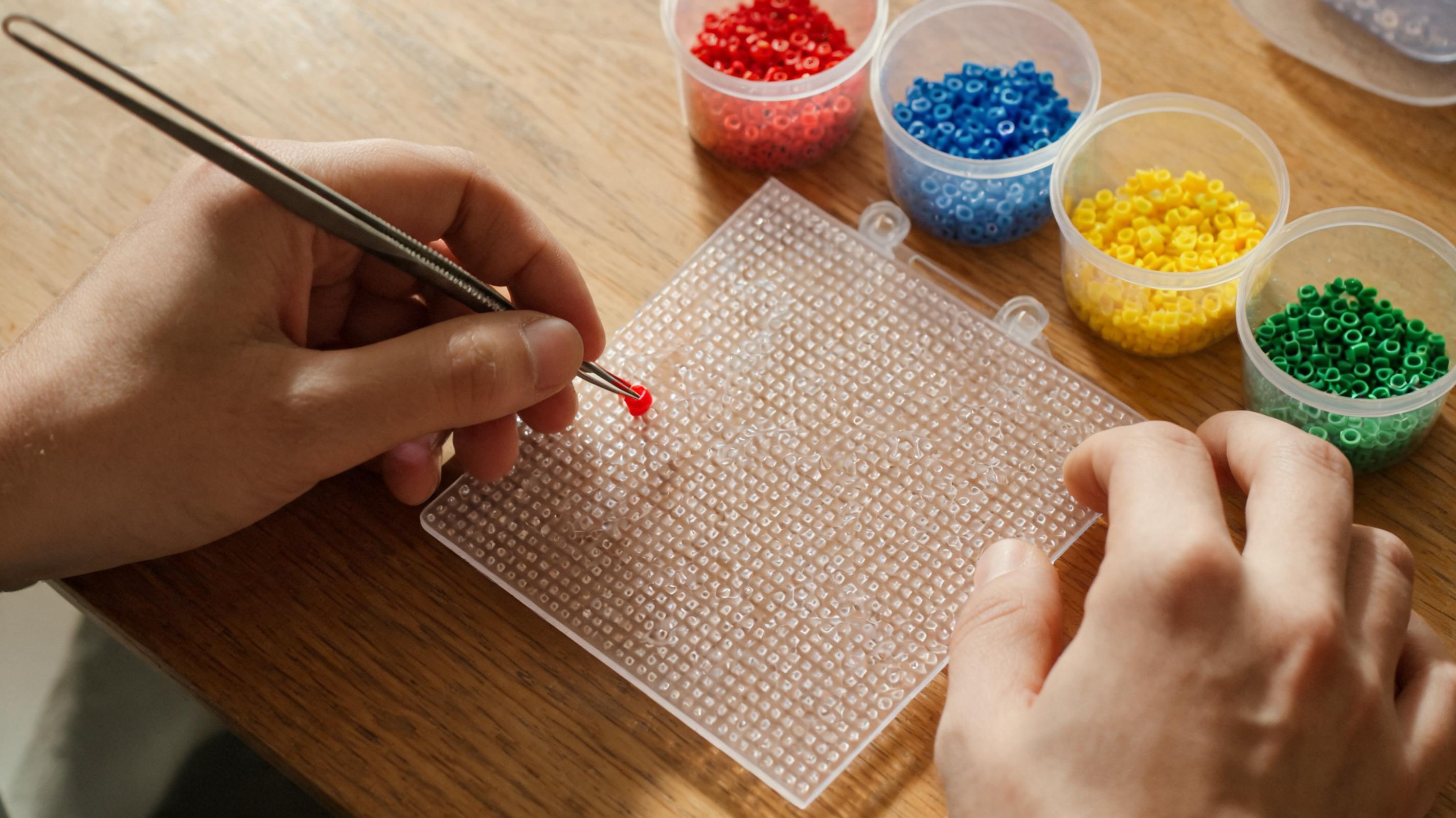
Create a Pixel Bead Pattern
Plan and draw an original design on a blank grid — canvas sizes, palette choices, and a simple drawing workflow.
Read guide →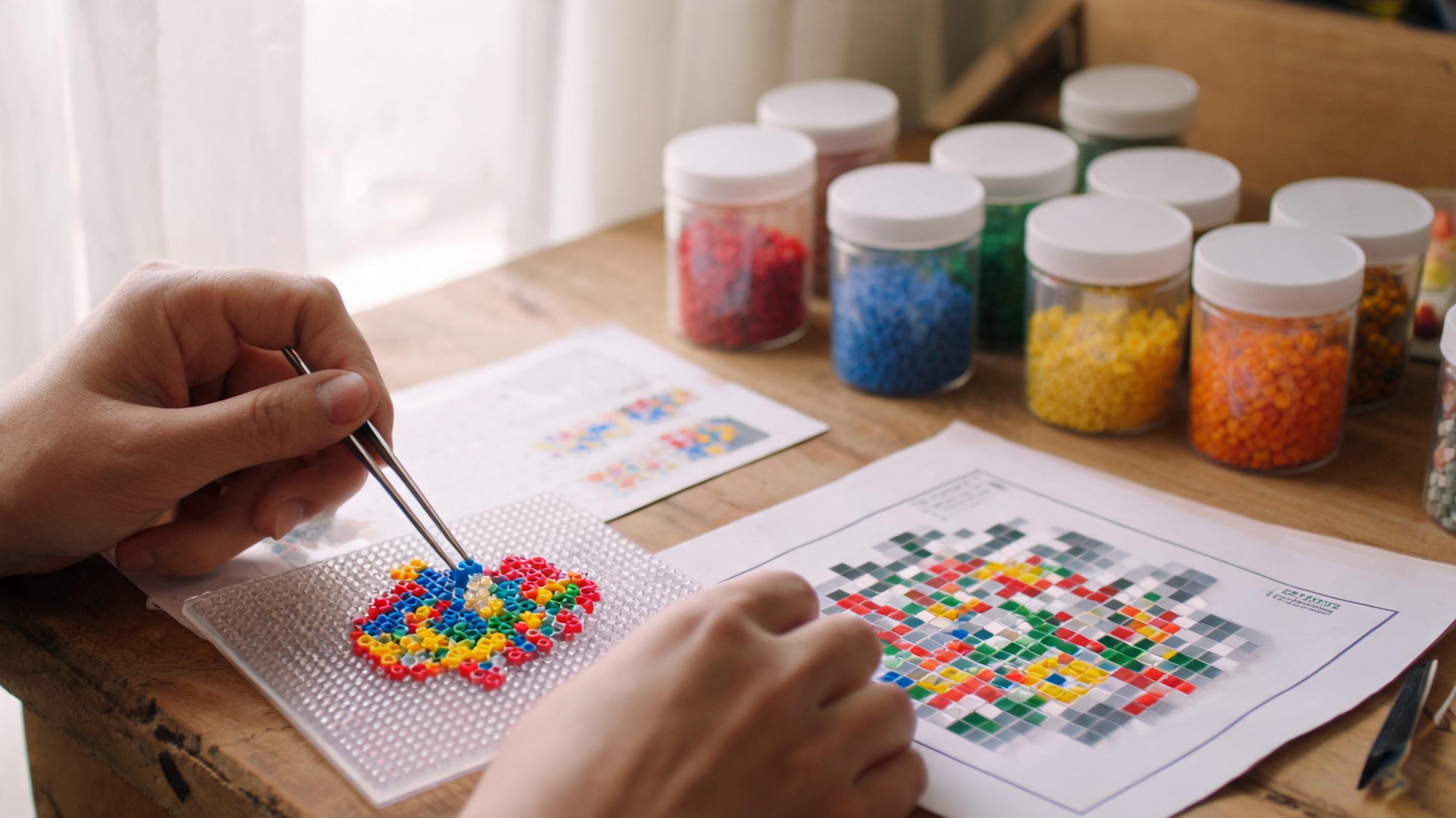
Pixel Bead Creator: Tools and Panels
Every control in Create from Scratch — editing tools, zoom, display toggles, reference images, and inventory limits.
Read guide →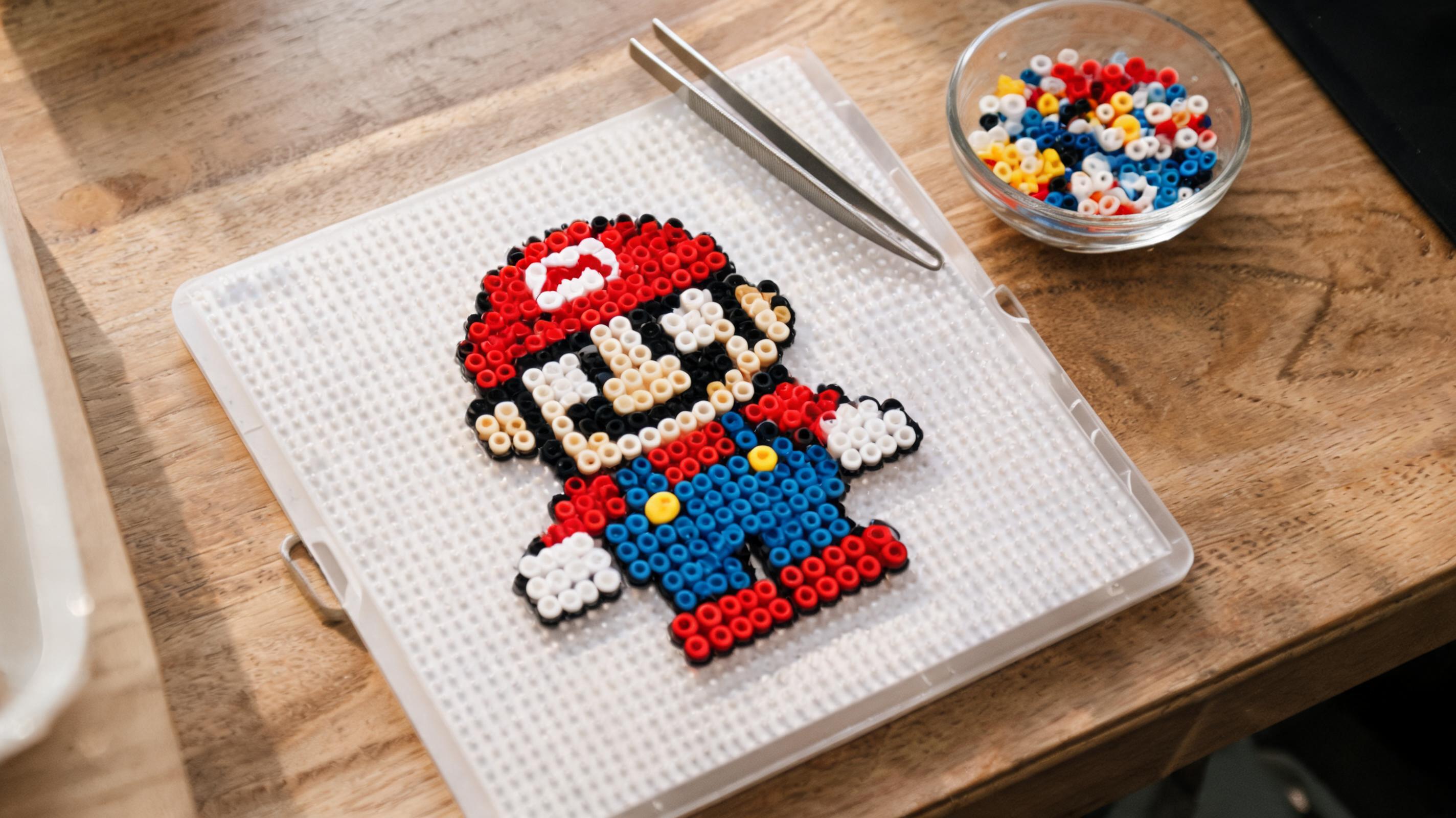
Pixel Art to Pixel Beads
Adapt existing pixel art into a practical physical pattern — resolution, color mapping, and printable guides.
Read guide →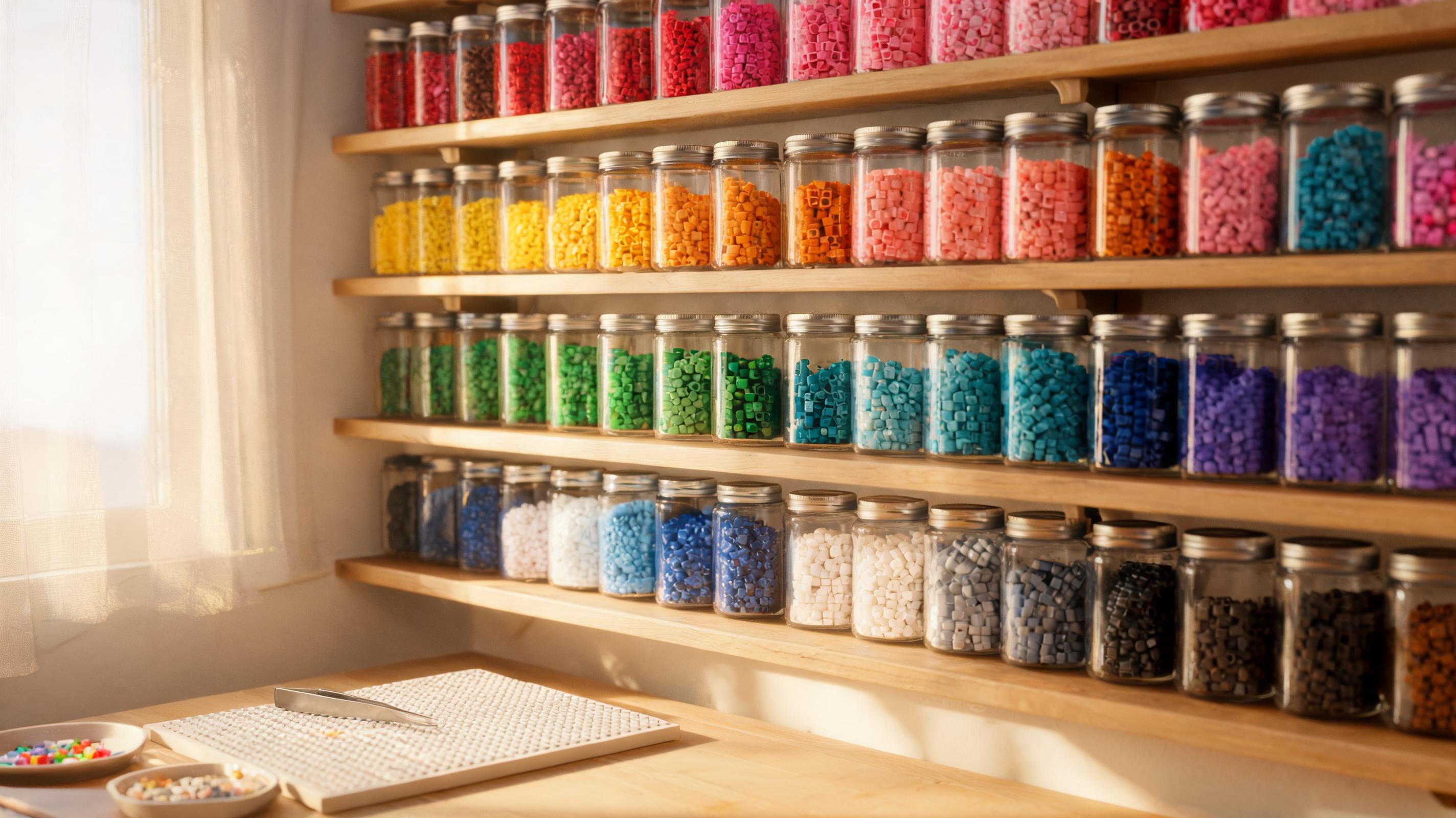
Pixel Bead Colors
Read color lists, limit palettes, substitute missing shades, and count materials before you start building.
Read guide →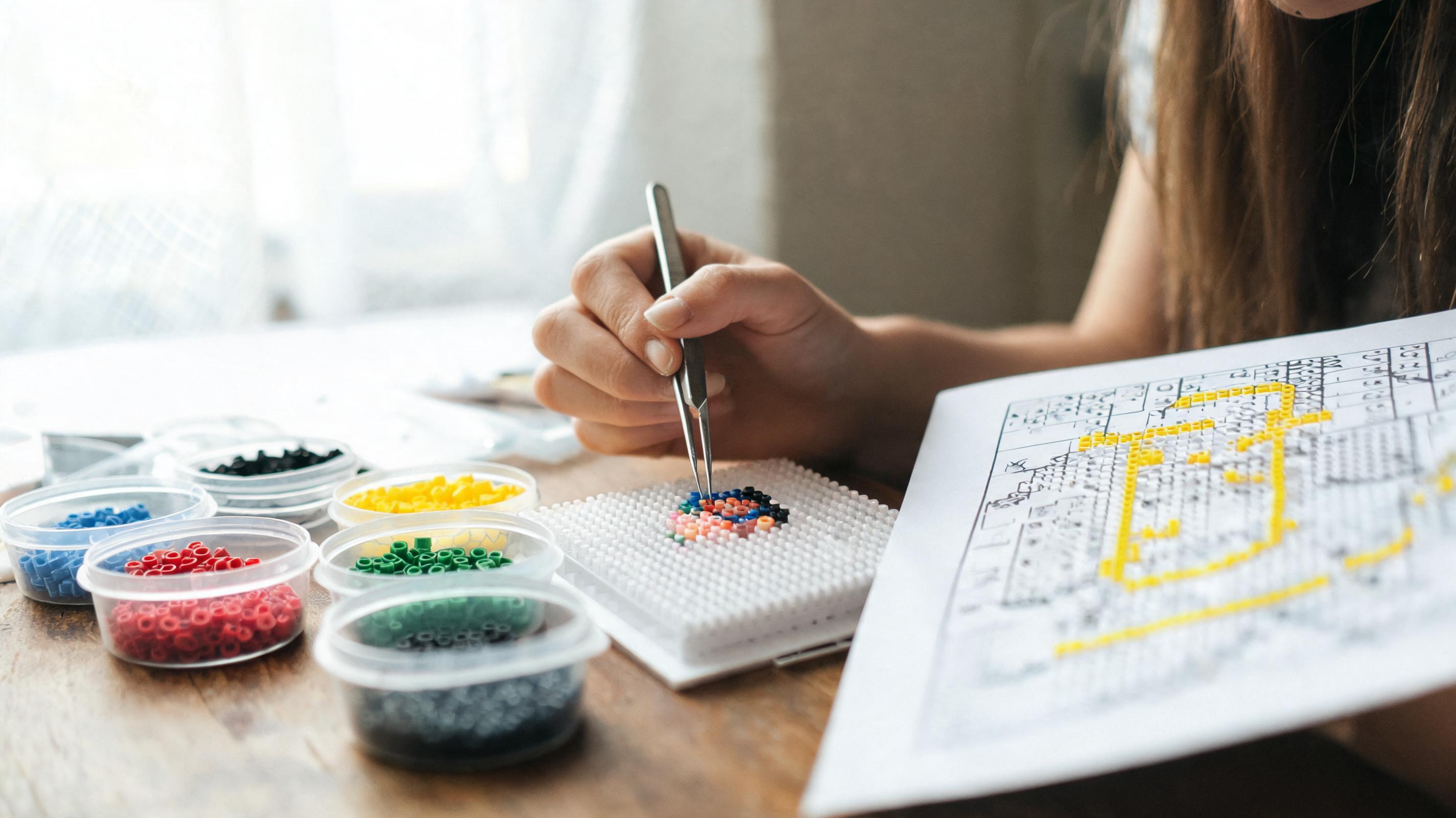
How to Use a Pixel Bead Pattern
Follow a grid at the table — board prep, build strategies, progress tracking, and final review before ironing.
Read guide →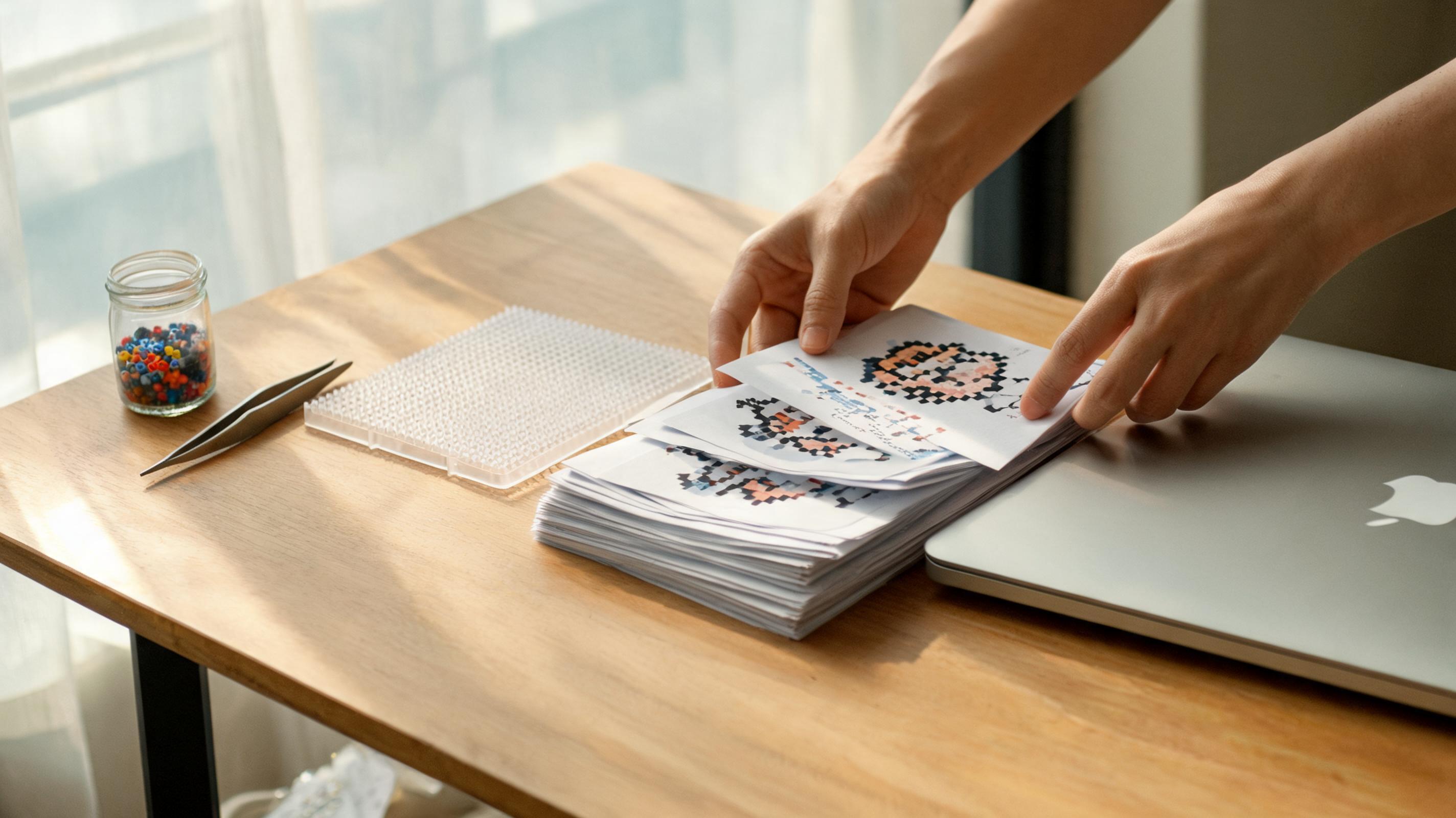
How to Save, Edit and Export a Project
Keep projects in one place — saving, cloud sync, PNG/PDF export, and handoff between tools.
Read guide →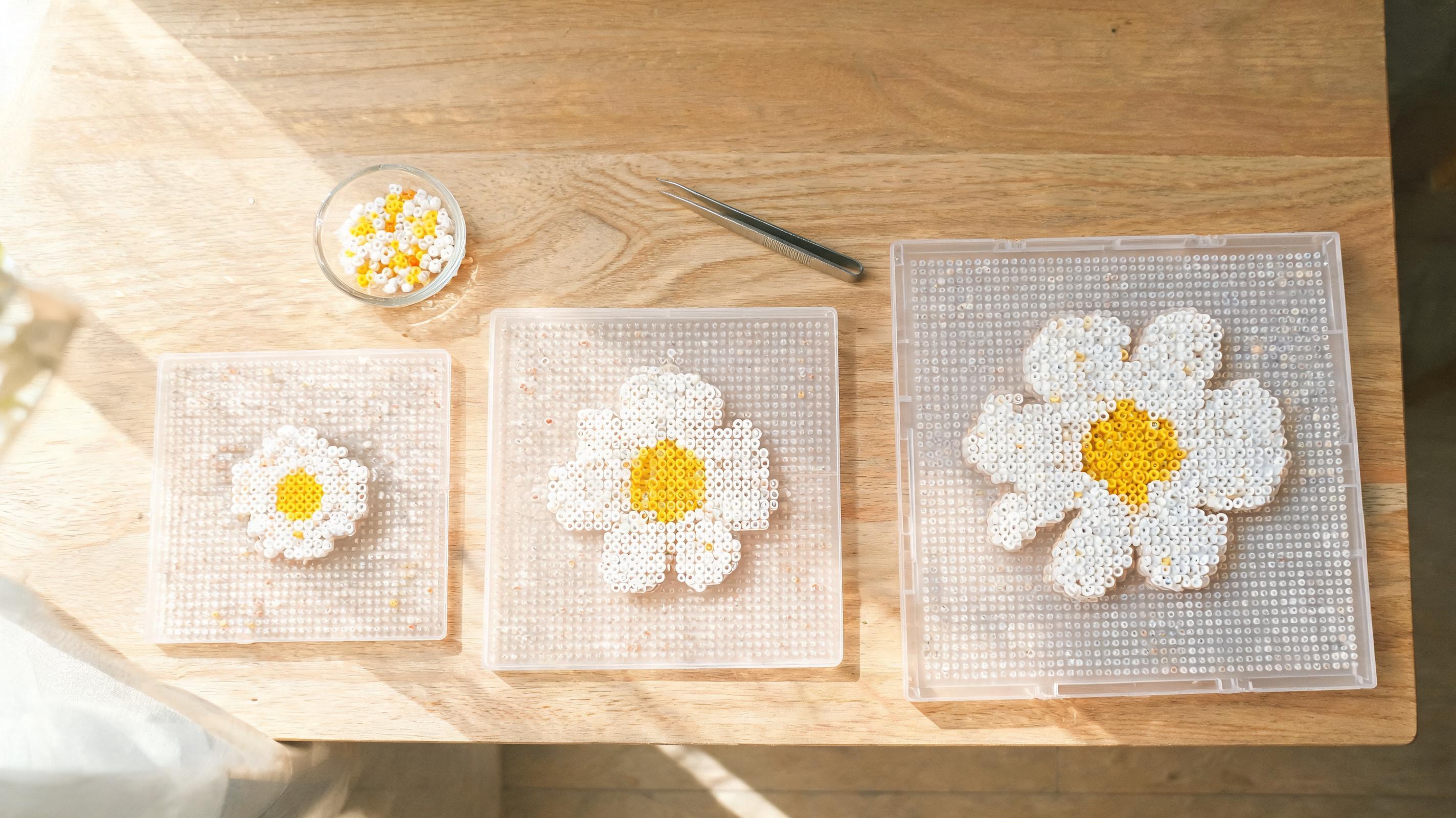
How to Choose the Right Grid Size
Match pattern dimensions to your boards, patience, and photo — what Small, Medium, Large, and Custom really change in the converter.
Read guide →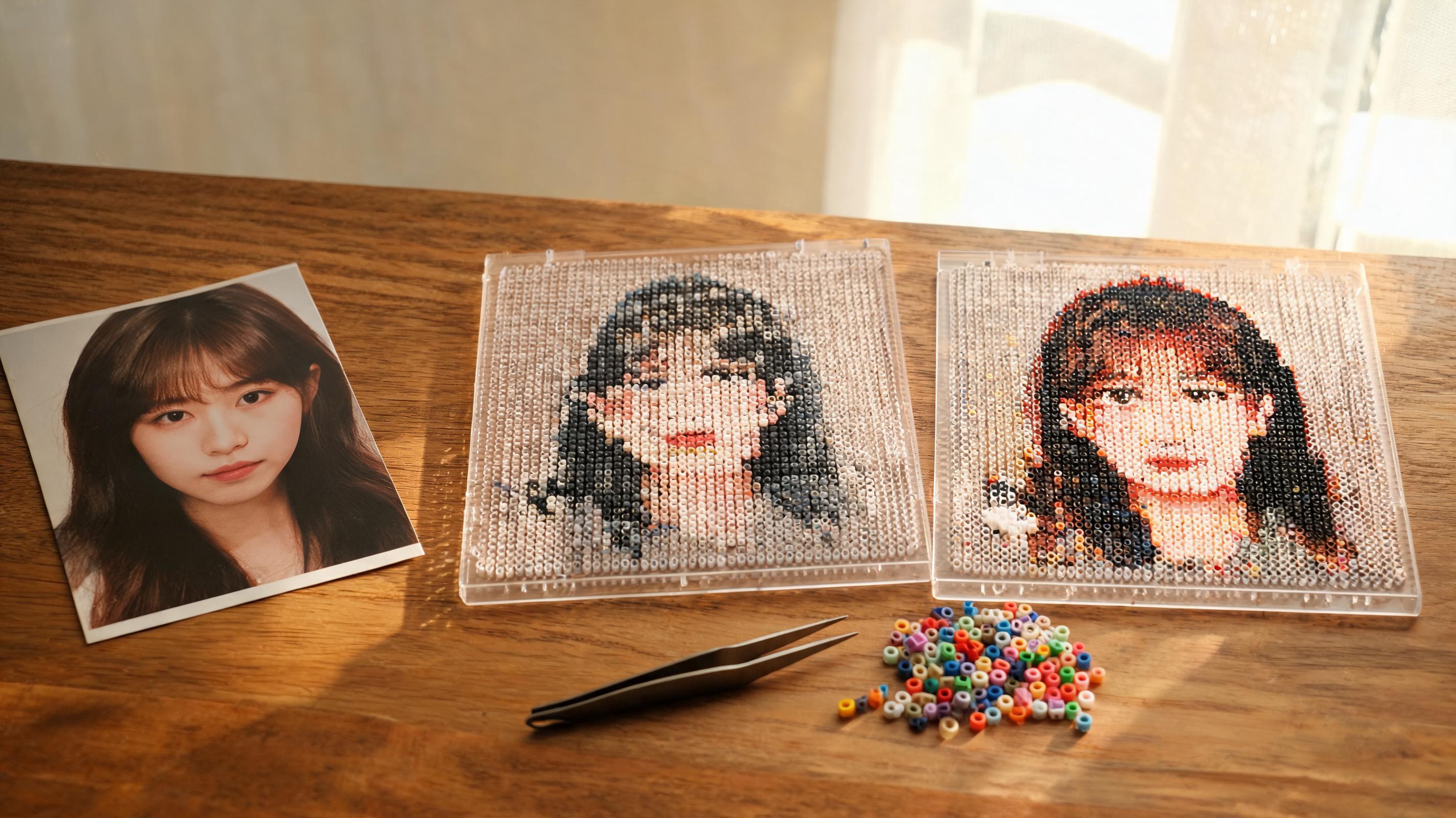
Exposure, Contrast and Saturation for Pixel Bead Patterns
Fine-tune the source photo before it becomes beads — what each slider does, how they interact, and what to watch in the preview.
Read guide →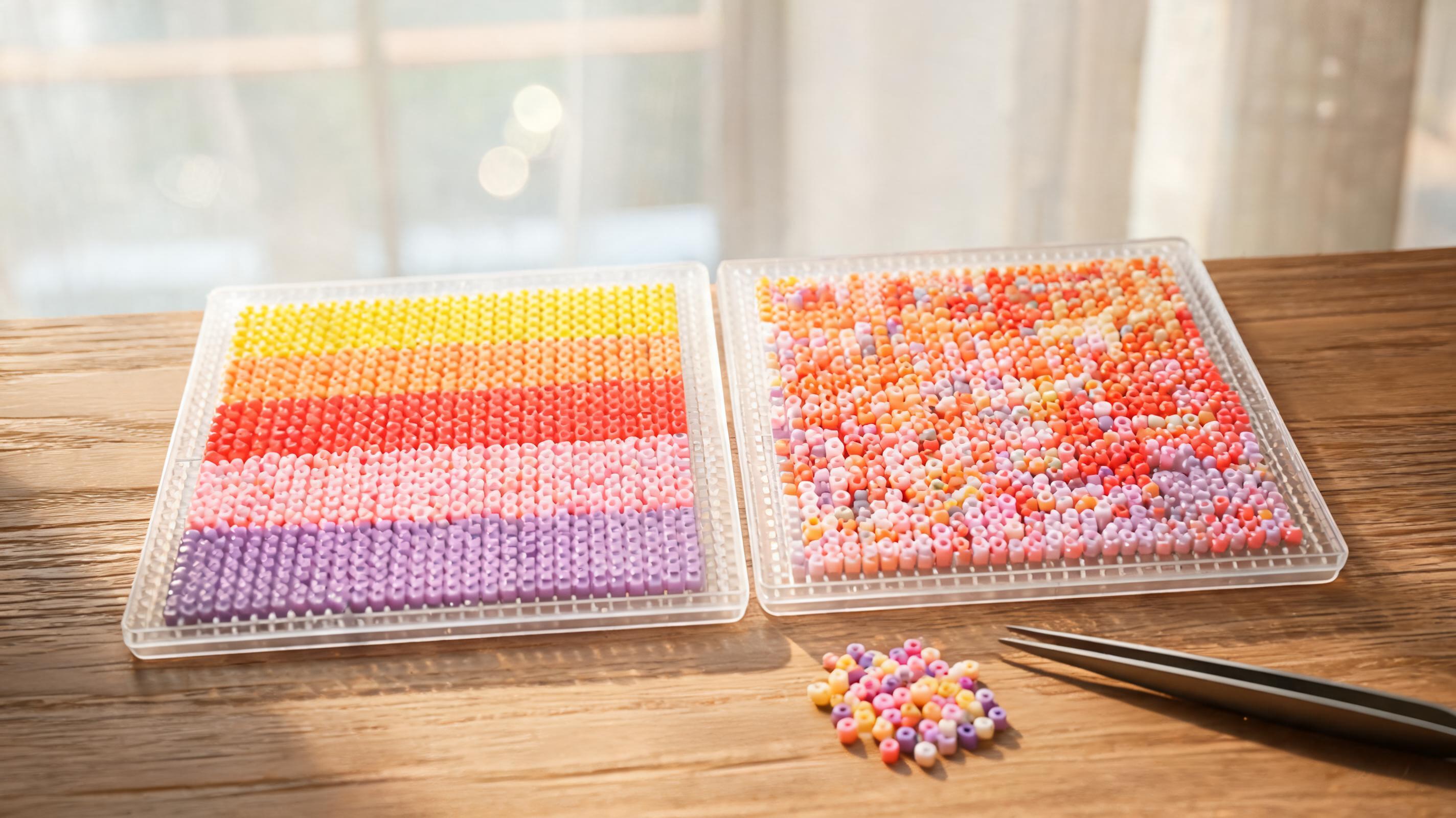
Dithering Explained
When to use Off, Auto, or On dithering in the image converter — and how speckled beads simulate smooth gradients.
Read guide →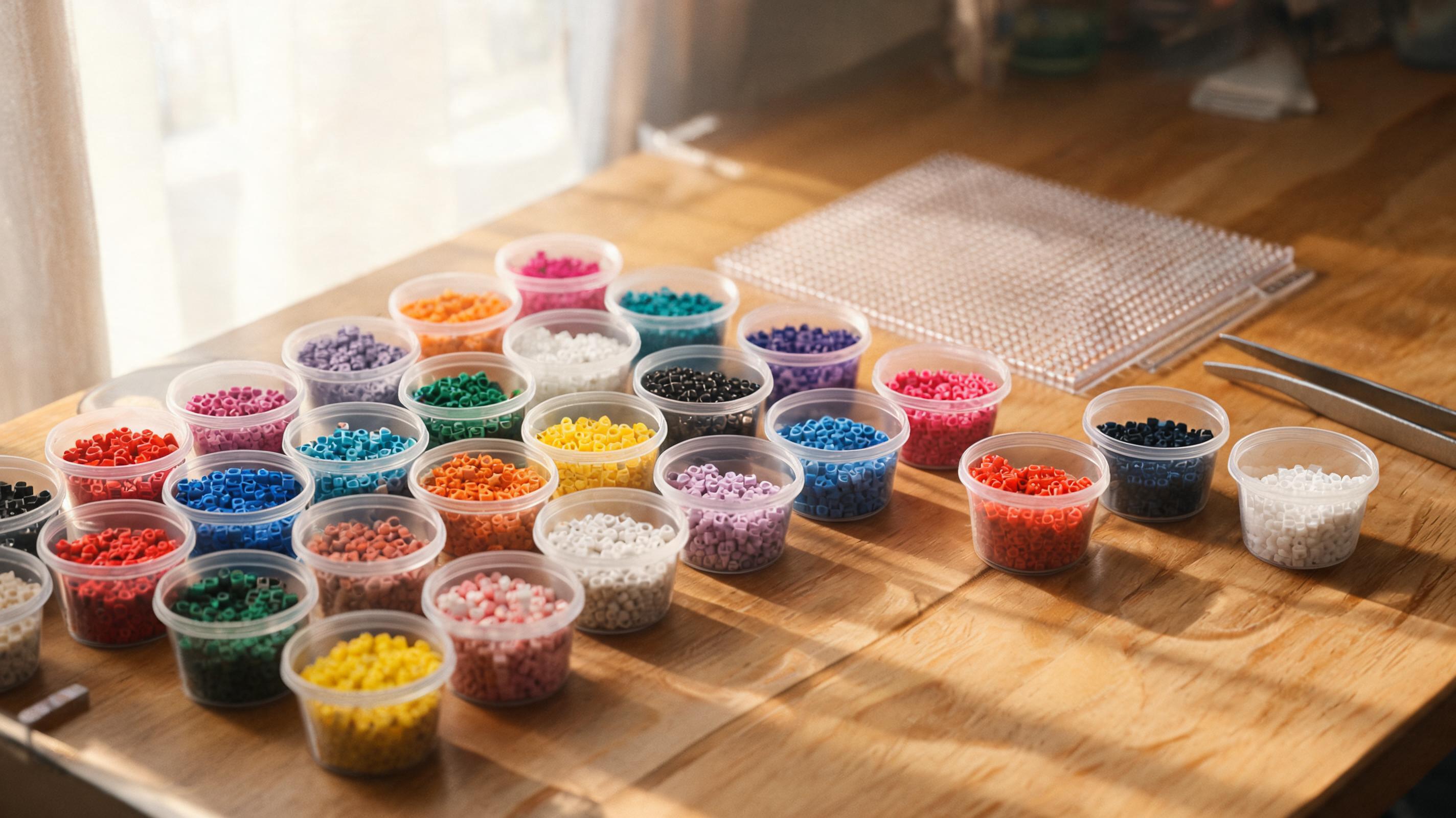
How to Reduce Too Many Colors
Simplify a material list deliberately with source cleanup, owned-color limits, cleanup, and color replacement.
Read guide →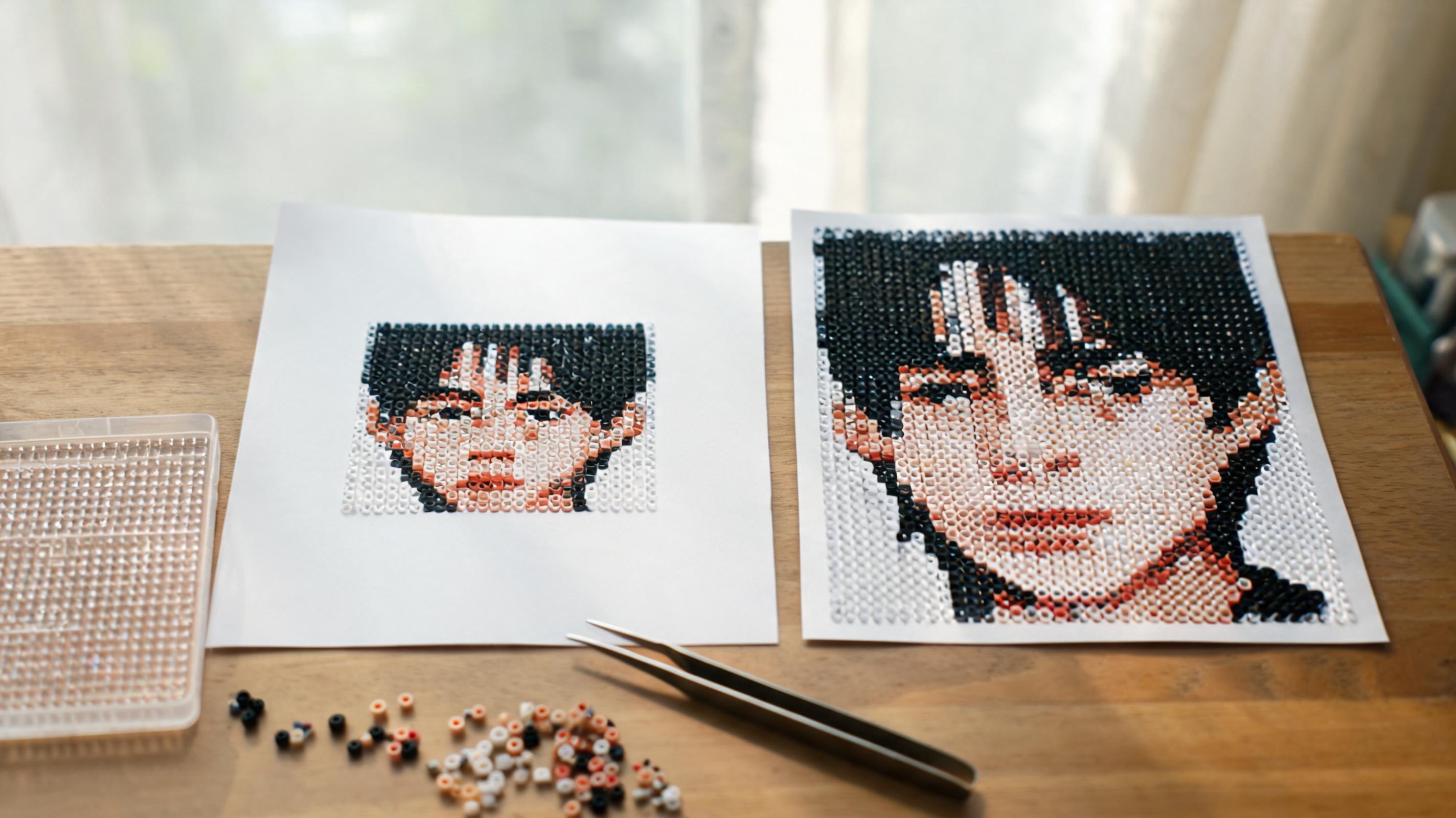
Fit Whole Image vs Crop to Fill
Choose how the photo fills the grid — letterboxing versus edge crop — in the Image framing control.
Read guide →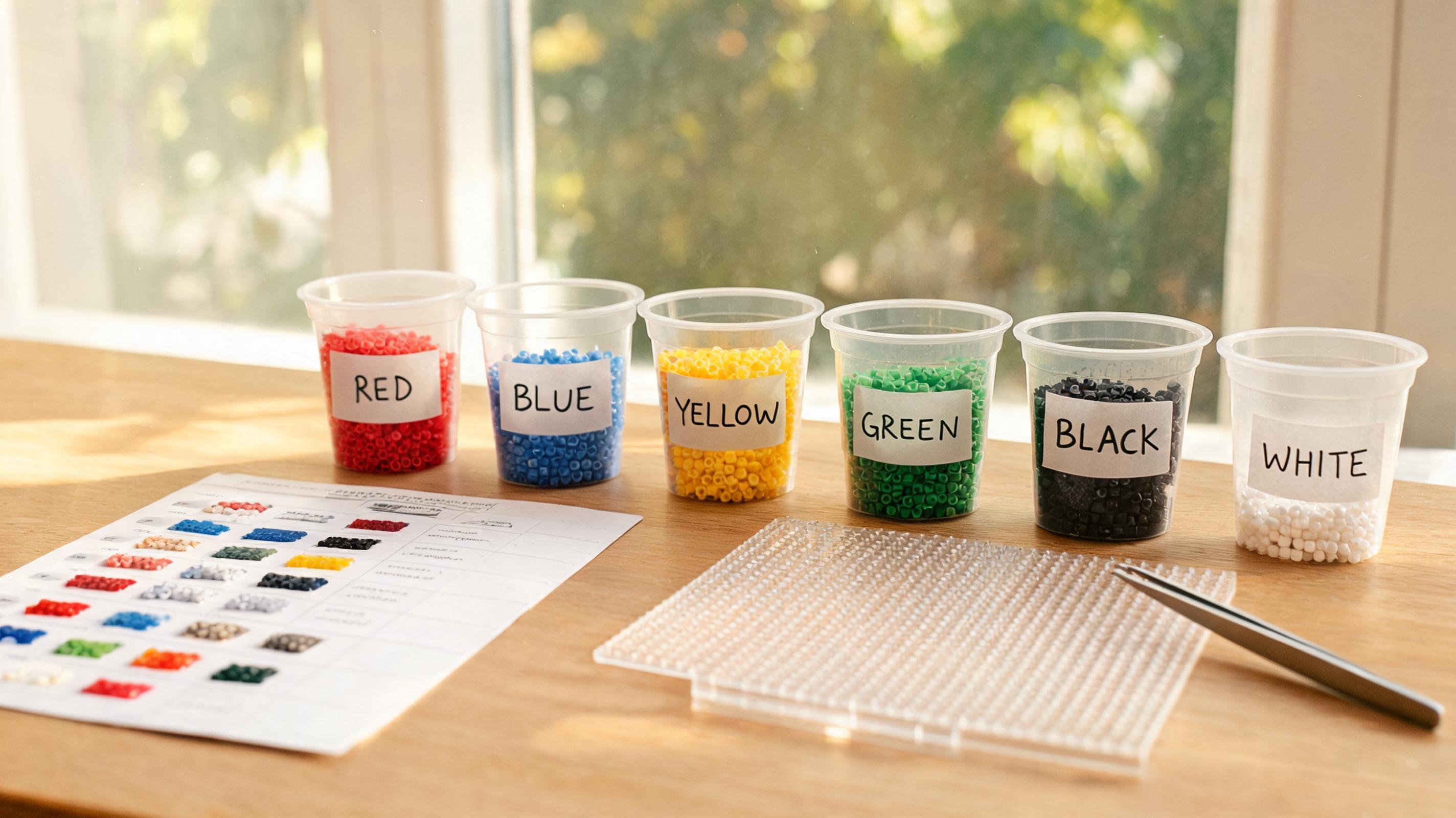
How to Read Bead Codes and Material Counts
Understand the Materials panel, export legends, and sorting cups using the same IDs the app shows on every cell.
Read guide →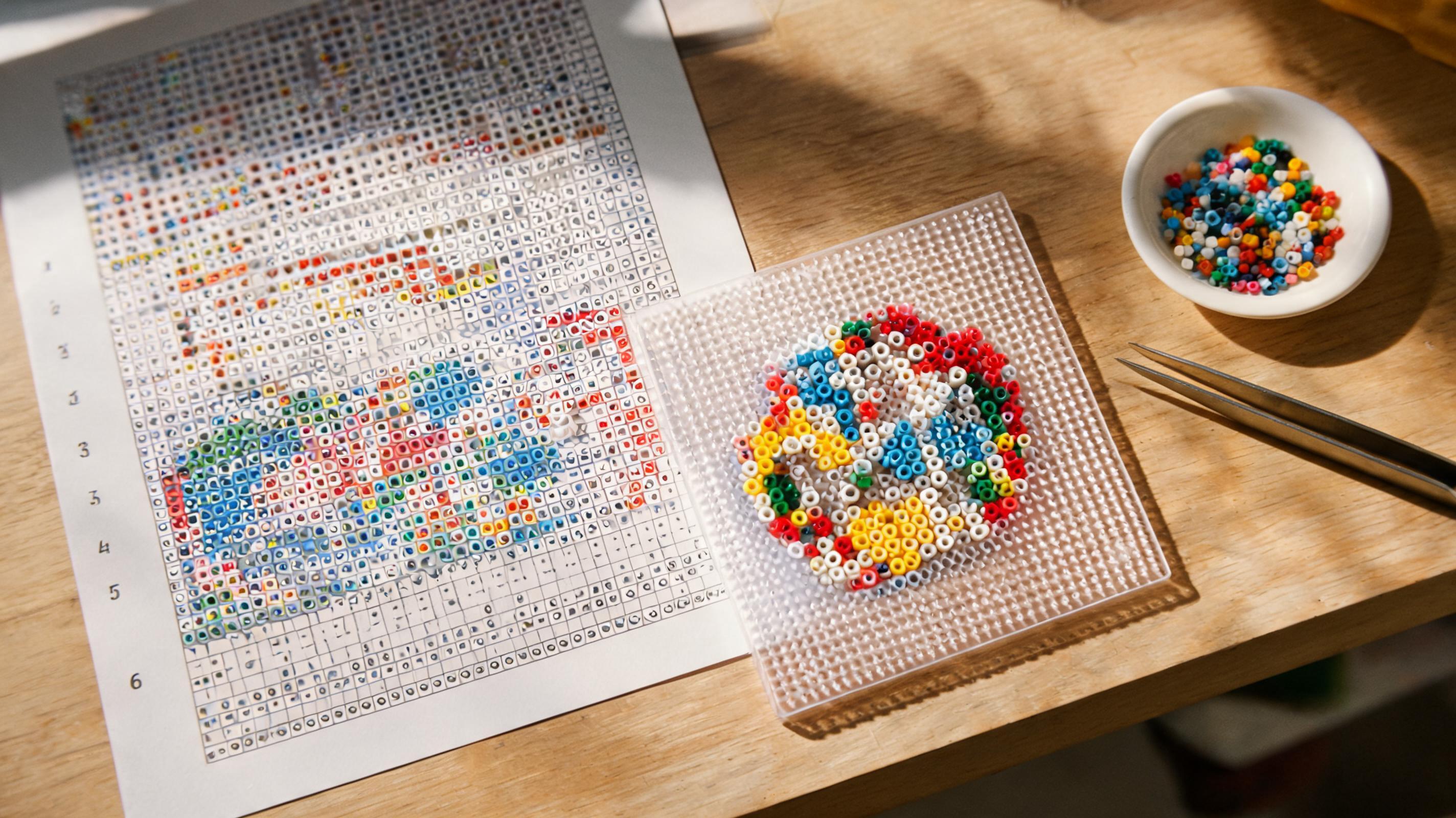
How to Use Grid, Coordinates and Bead Codes
Display peg lines, row numbers, and color IDs on the canvas in both the converter preview and Create from Scratch.
Read guide →