Pixel Bead guide
How to Reduce Too Many Colors
Simplify a material list deliberately with source cleanup, owned-color limits, cleanup, and color replacement.
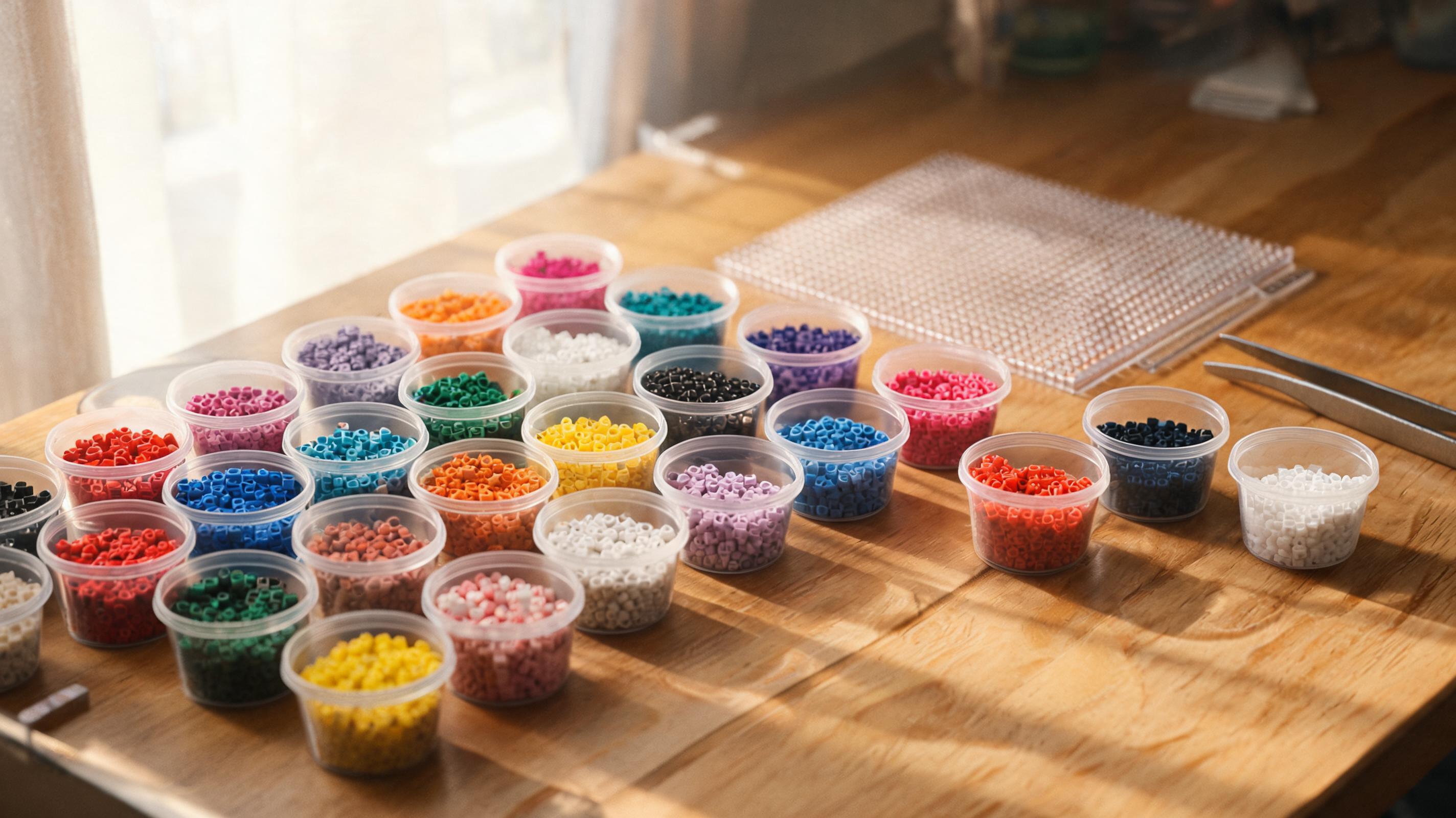
What It Changes
The converter uses the complete selected brand palette by default and does not remove a color just because it is rare. To simplify intentionally, improve the source image, restrict matching to a practical owned-color subset, run isolated-bead cleanup, or merge shades with Replace color in Creator.
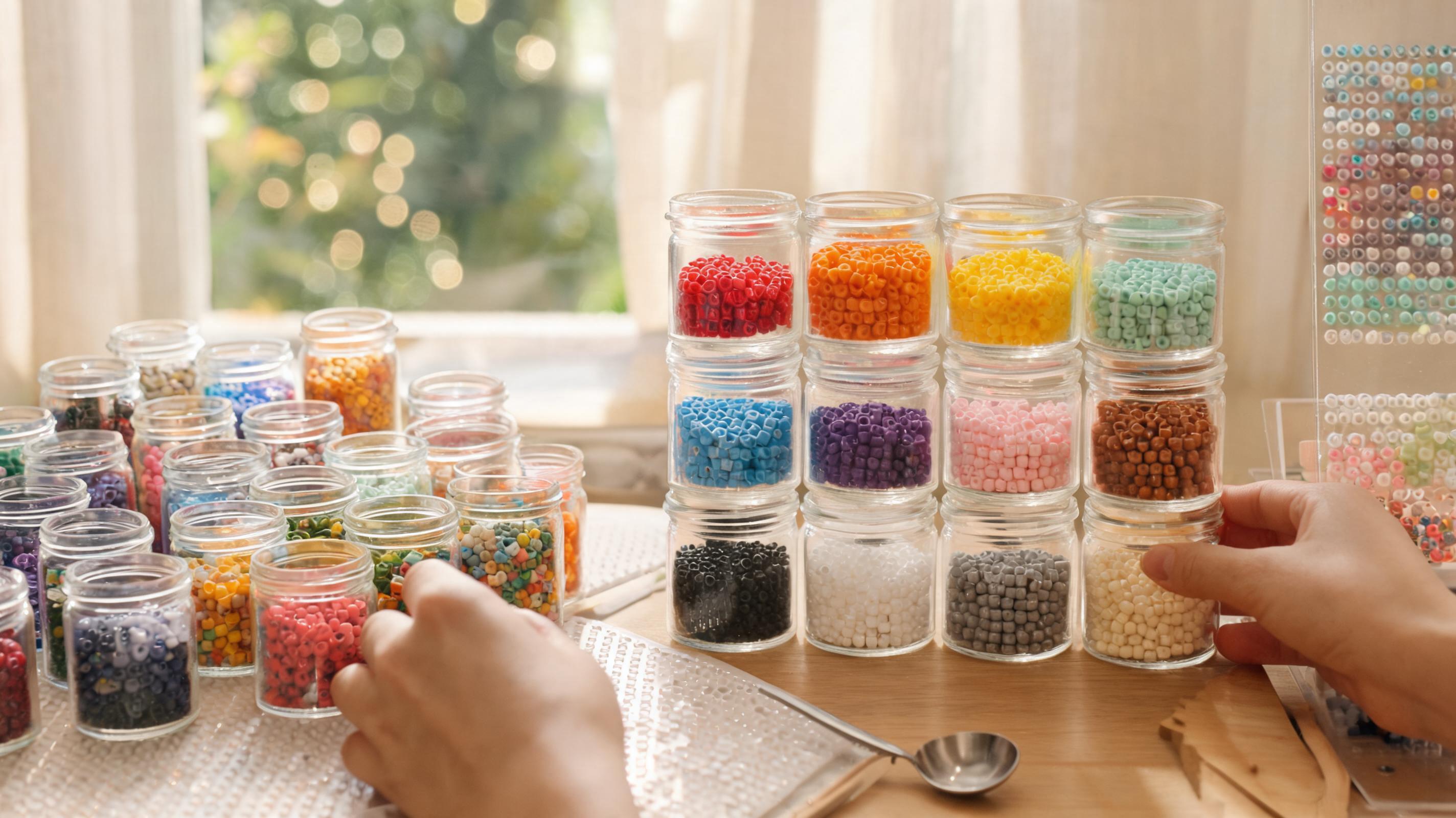
When to Use It
- Materials shows more than 25 colors on a beginner project.
- Many rows appear with counts under 5 beads — merge candidates.
- You are sorting jars and keep finding one-off shades.
What Can Go Wrong
Over-reducing destroys shading — faces become flat and backgrounds posterized. Owned-color mode can pick a poor substitute if the selected set lacks light, mid-tone, or dark options.
Recommended Starting Point
Generate once with the full brand palette to establish the faithful result. Then, if the material list is impractical, choose a realistic owned-color subset and compare again. Run Apply cleanup only after the palette and grid size feel right.
What to Check in the Preview
Scan the Materials list sorted by amount. Check that rare colors represent real eyes, letters, highlights, or outlines instead of isolated noise. Use Creator's Replace color for deliberate merges.