Pixel Bead guide
Fit Whole Image vs Crop to Fill
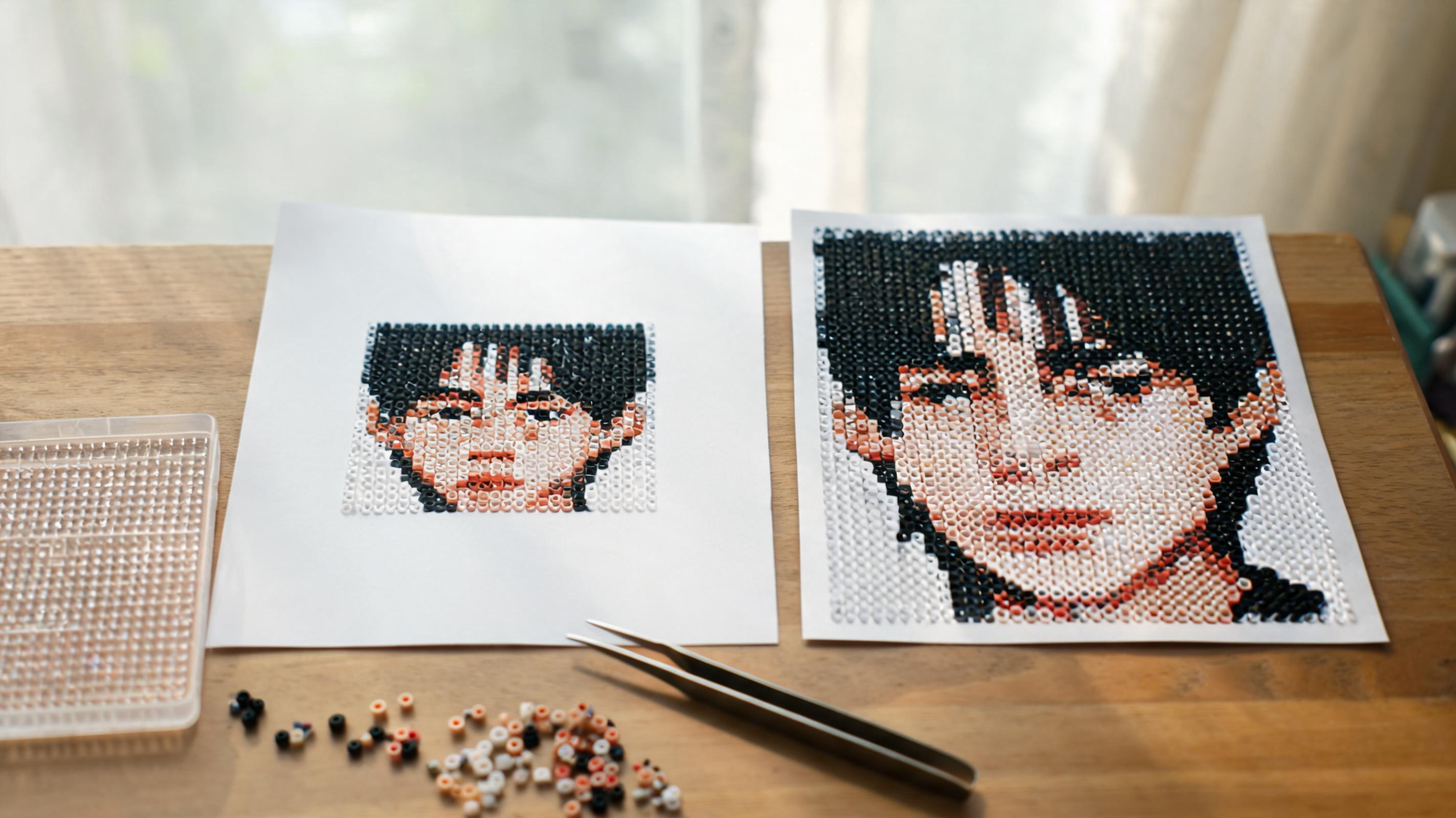
Choose how the photo fills the grid — letterboxing versus edge crop — in the Image framing control.
What It Changes
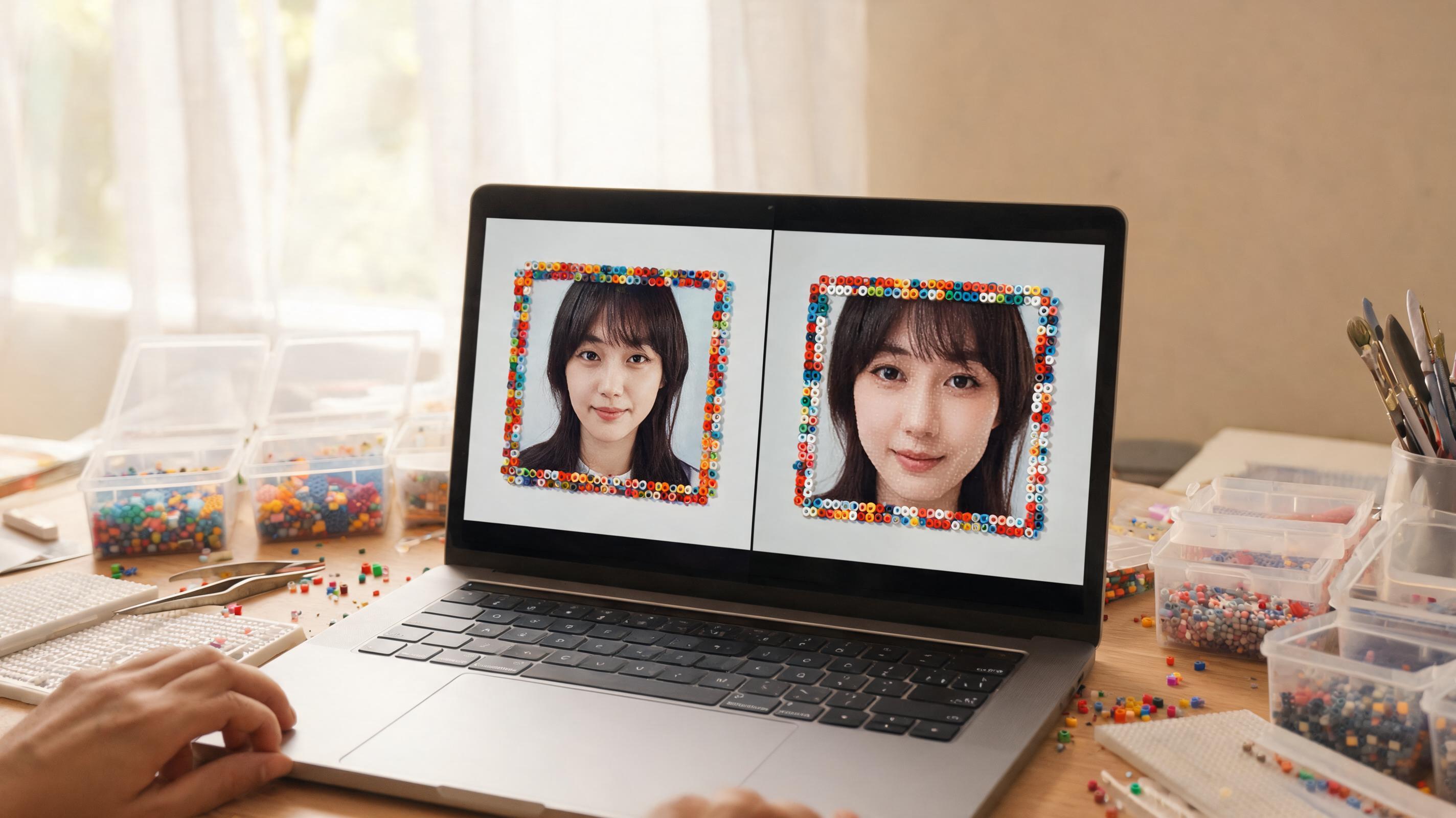
Image framing in the converter controls how the uploaded photo maps to your width×height grid. Fit whole image scales the photo to fit inside the grid, adding empty peg rows or columns if the aspect ratios differ. Crop to fill zooms until every peg is covered, trimming edges that do not fit.
When to Use It
- Fit whole image — logos, full-body shots, or any design where losing an edge ruins the subject.
- Crop to fill — portraits where you want the face large and can lose background.
- Switch framing before resizing — crop changes which details survive at Medium vs Large.
What Can Go Wrong
Crop to fill can cut off the top of a head or pet ears. Fit whole image leaves blank peg borders that you may need to fill or remove with background tools.
Recommended Starting Point
Try Fit whole image first for new uploads. Switch to Crop to fill only when empty borders bother you and the subject is centered.
What to Check in the Preview
Toggle Overlay and verify nothing important is clipped. Check empty peg rows at top/bottom with Fit — remove them with background removal if needed.