Pixel Bead guide
How to Read Bead Codes and Material Counts
Understand the Materials panel, export legends, and sorting cups using the same IDs the app shows on every cell.
What It Changes
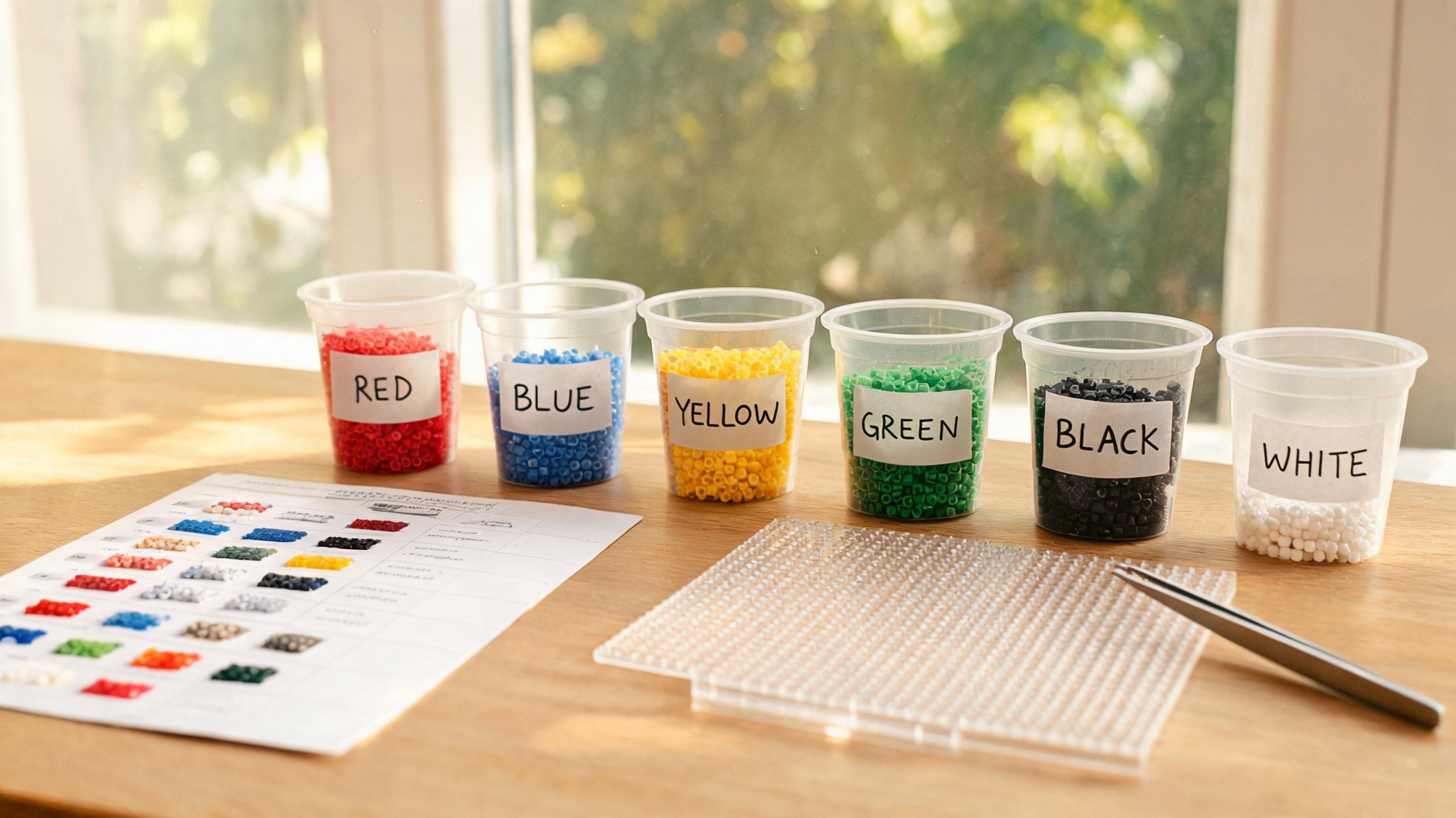
Bead codes (A1, B12, H01, etc.) identify a specific color in your chosen brand palette. The Materials list shows ID, name, swatch, and exact peg count. Toggle Bead codes on the preview to print IDs on every filled cell.
- Beads — total filled pegs in the pattern.
- Colors — number of distinct IDs used.
- Each row Amount — how many pegs need that exact shade.
When to Use It
Open Materials before buying beads or pouring cups. Enable Bead codes while spot-checking a physical build against the screen. Export PDF when you want a paper legend at the table.
What Can Go Wrong
Mixing brands while reading codes — MARD A1 is not Perler A1. Editing the grid without re-exporting leaves your printed PDF counts wrong.
Recommended Starting Point
Pick your brand palette before interpreting any code. Download the PDF once counts look final. Highlight rows as you pour.
What to Check in the Preview
Turn on Bead codes and zoom a busy region — can you read IDs without squinting? Scan Materials for singleton colors and decide if Replace color in the creator is worth merging them.