Pixel Bead guide
How to Save, Edit and Export a Project
Keep projects in one place — saving, cloud sync, PNG/PDF export, and handoff between tools.
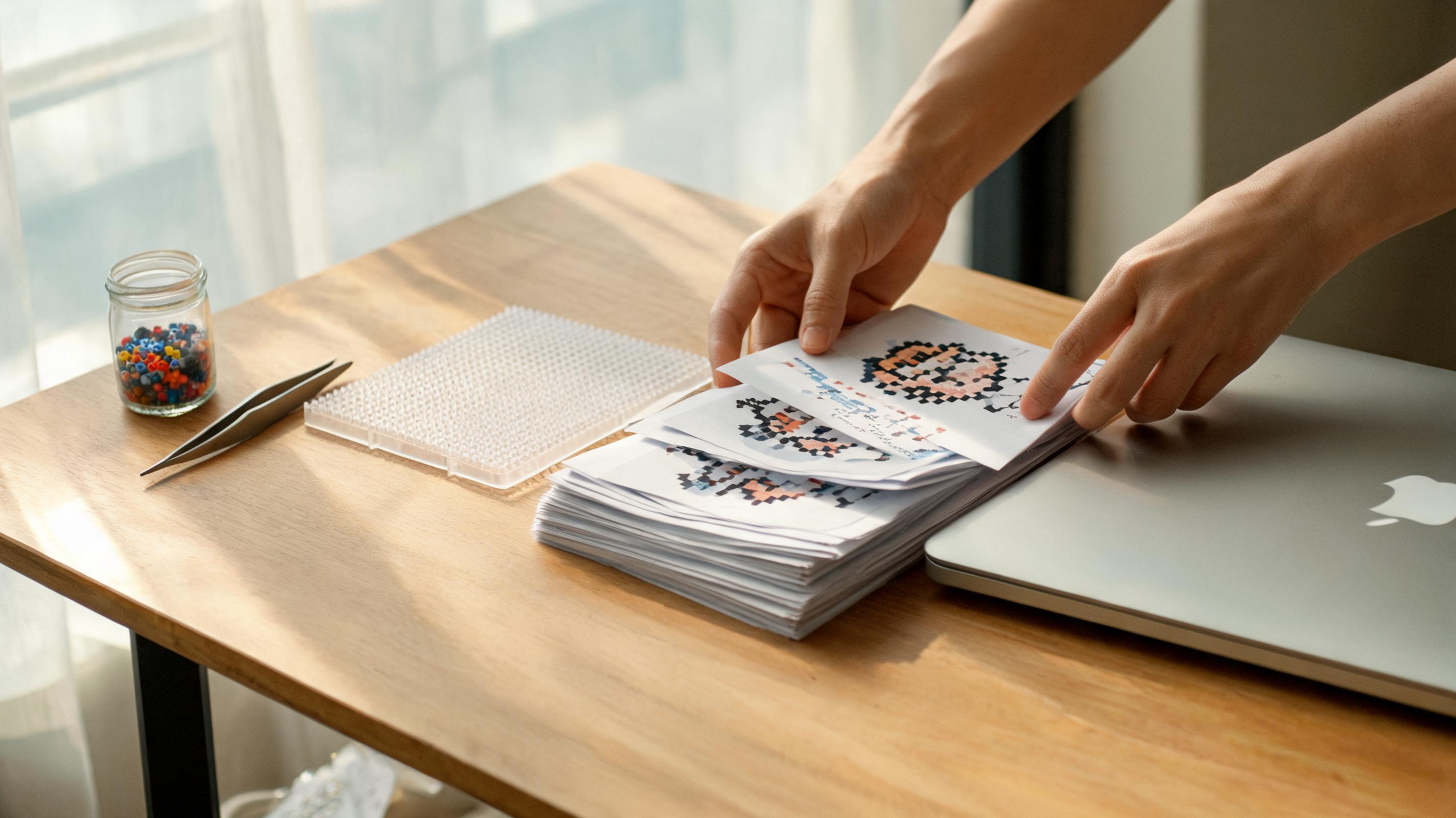
Save a Project
Both the image converter and Create from Scratch offer Save project (or Save to Workspace). Projects store the grid, palette, title, and optional reference image. Sign in to sync across devices.
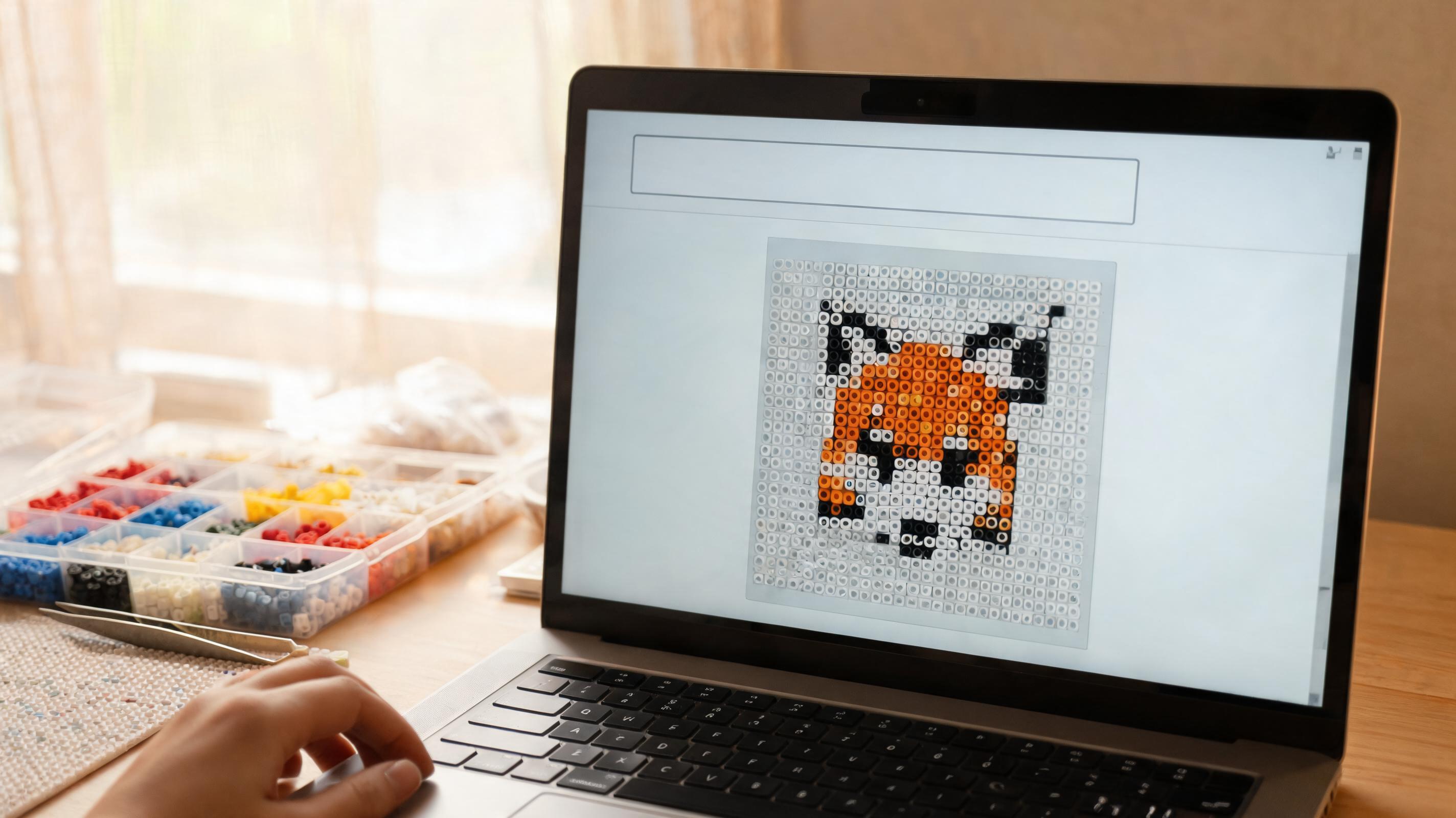
- Saved projects appear on the Workspace page.
- Open any project to continue editing or review counts.
- Revision numbers track changes for sync conflict resolution.
Export PNG and PDF
Download guide opens the export dialog. PNG produces a flat image of the pattern — good for sharing. PDF includes paginated board guides, legends, and material tables sized for printing.
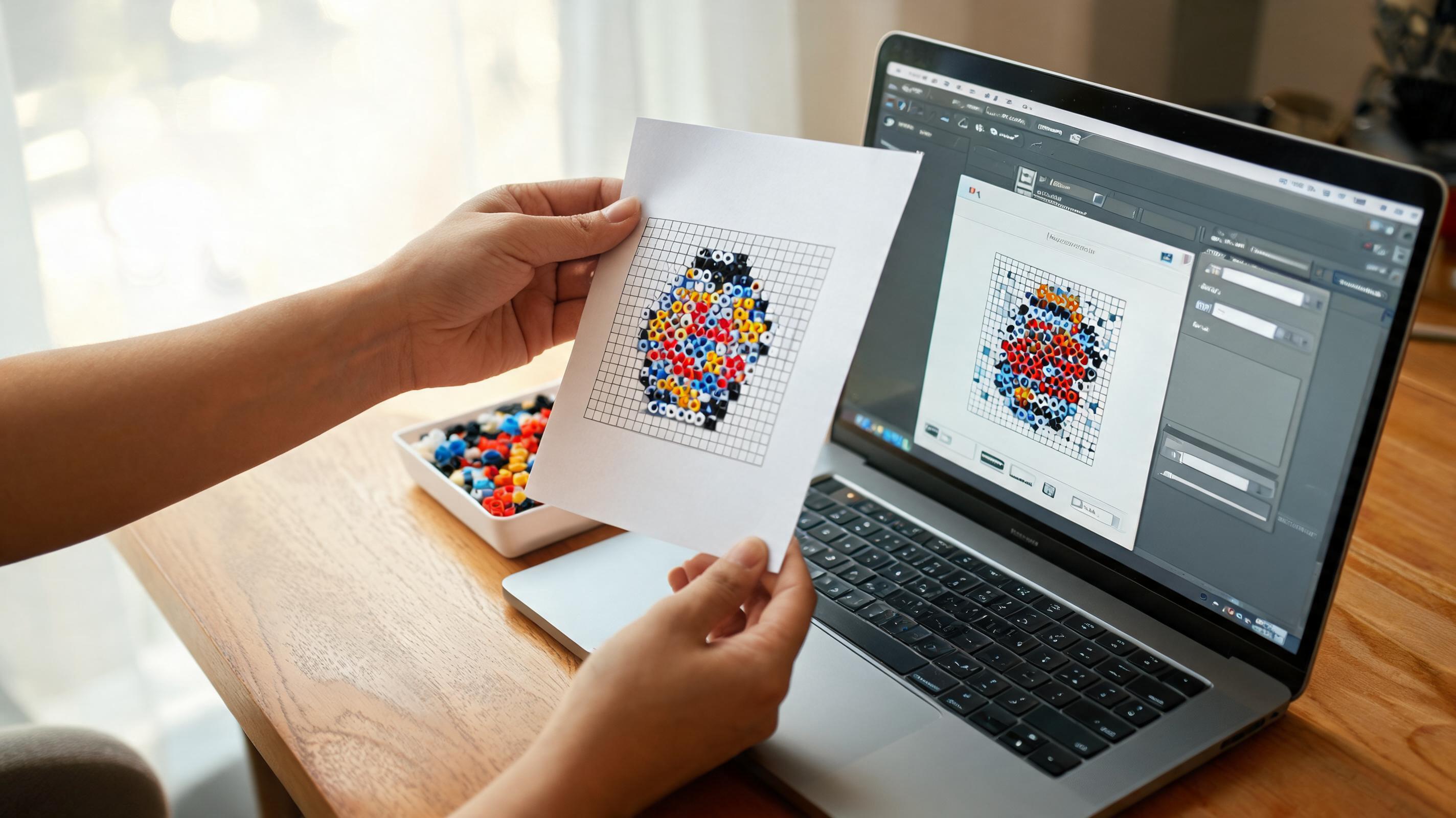
Move Between Tools
Edit in Create from Scratch in the converter sends your current pattern to the manual editor with palette and reference intact. You can also import from workspace when starting the creator.
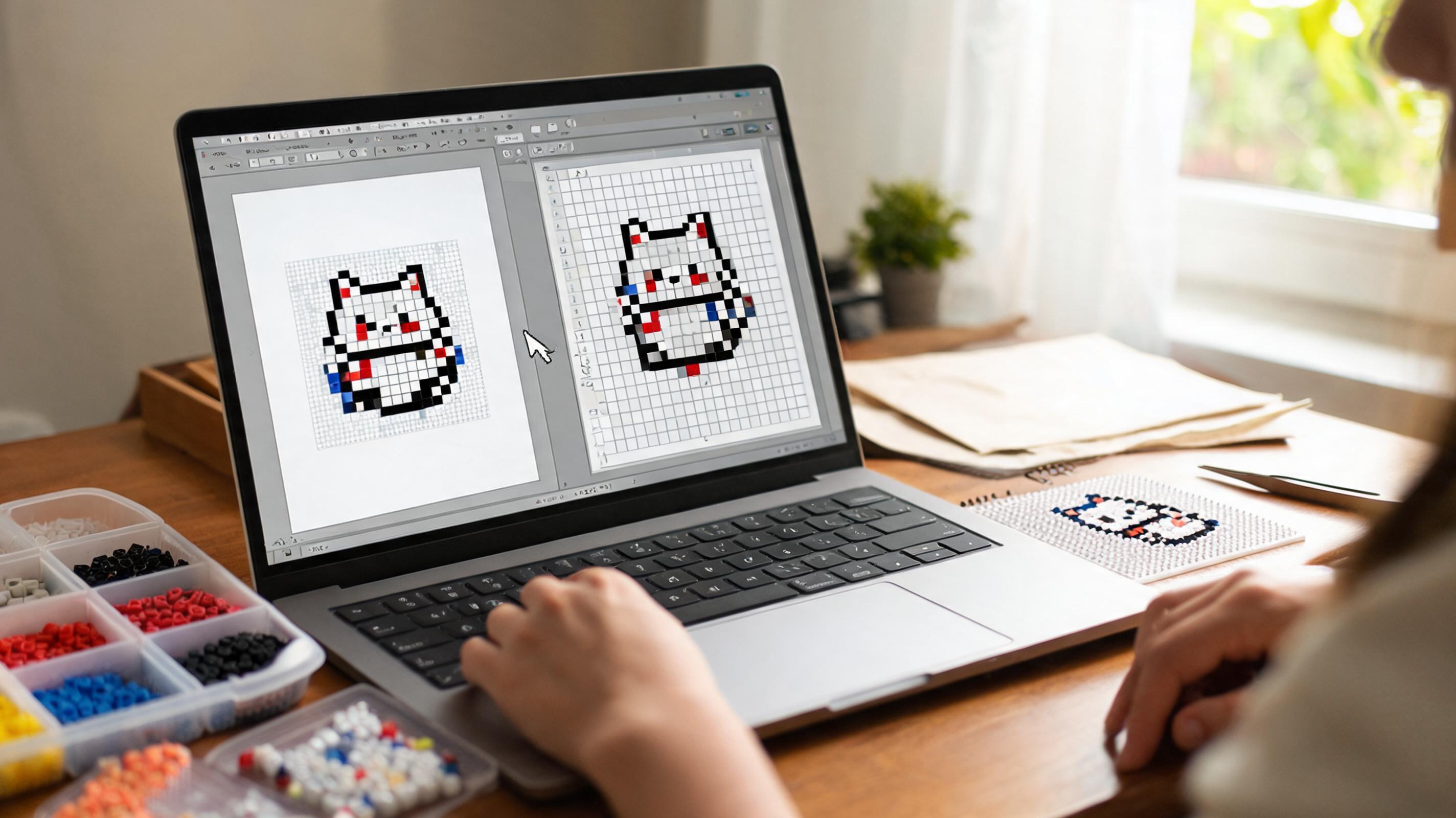
- Converter → Creator — fine-tune auto-converted areas by hand.
- Creator → Workspace → reopen later or export.
- Pattern library → open a design → customize in the creator.
Reuse Reference Images
In Create from Scratch, Choose from workspace lists photos saved on your other projects. Pick one to load it into the Reference panel without re-uploading from your device.
This is useful when you converted a photo in the image tool, saved the project, then opened the creator to adjust details while keeping the same source visible.